
The use of Smart Switch is restricted on fully managed Samsung devices by default, but you can easily enable it using Miradore.
Using the Smart Switch app on fully managed devices
The Samsung Smart Switch app lets you transfer contacts, preferences, and other content from your device to Samsung Galaxy mobile devices.
Starting from version 3.7.05.8, Smart Switch is disabled on fully managed Samsung devices by default. When trying to launch the app, the following warning message is displayed: Security policy restricts use of Smart Switch. This is because the application is not intended to be used in business environments.
For more information on the topic, see Samsung's documentation.
Enable the Smart Switch app on fully managed devices
Smart Switch can only be enabled on Samsung devices running Android 9 or later. To enable Smart Switch, you must first configure and deploy the application to your fully managed Samsung devices, then create a Restrictions configuration profile to allow backup and restore services on the devices.
Important: Smart Switch is not designed for enterprise environments and enterprise-level security cannot be guaranteed if you decide to enable the app on a fully managed device used for business purposes. Therefore, we recommend you to get approval from your organization's IT security team before enabling Smart Switch.
Configure and deploy the Smart Switch app
- Approve and add the Samsung Smart Switch Mobile app to your Miradore site as a managed app.
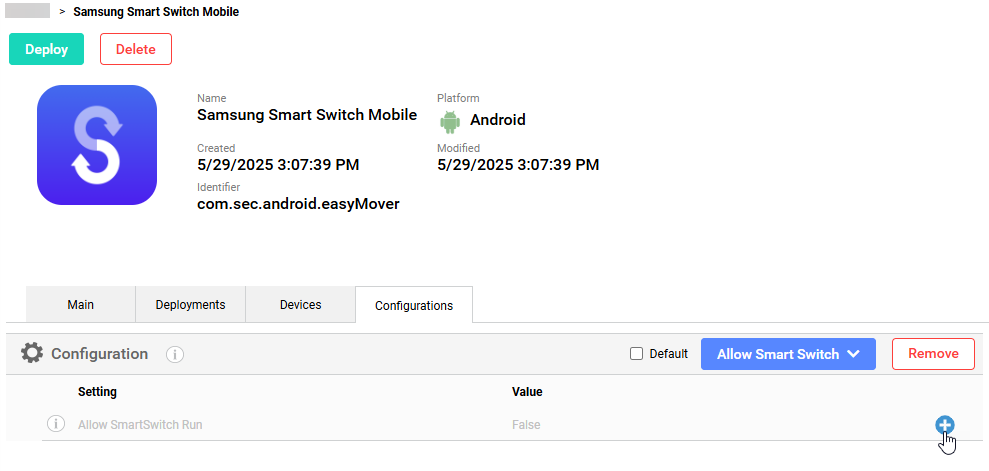
- Navigate to Management > Applications and double-click the application's row to open its page.
- On the application's page, navigate to the Configurations tab and open the Select configuration drop-down menu.
- Select Add configuration and enter a name for your configuration, then press Enter.
- Select the
 icon on the right of the Allow SmartSwitch Run setting.

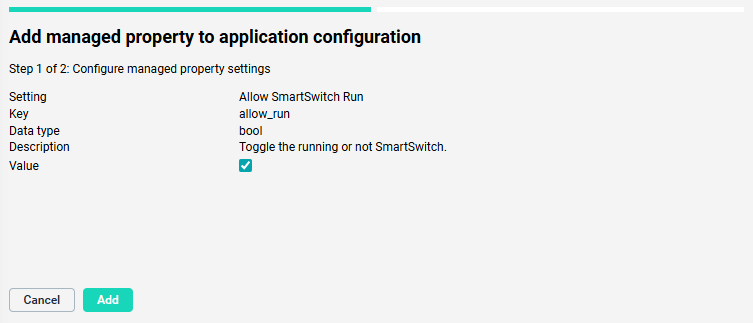
Result: The Add managed property to application configuration wizard opens. - Select the Value checkbox, then select Add.

- Select Close to exit the wizard.
Result: The Smart Switch app is configured to run on devices after deployment. - Select Deploy at the top of the page.
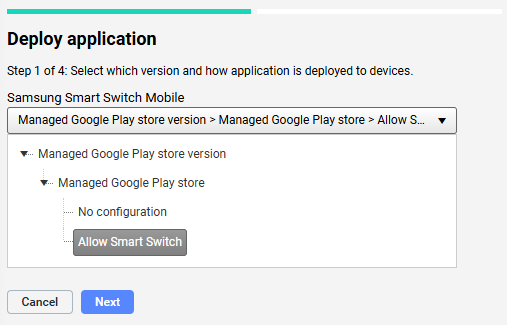
- In the Deploy application wizard, select Managed Google Play store version > Managed Google Play store > Your configuration from the drop-down menu, then select Next.

- Select the devices to which you want to deploy the application by their checkboxes, then select Next.
- Select Deploy to finalize the deployment, then select Close to exit the wizard.
Create and deploy a Restrictions configuration profile
- Navigate to Management > Configuration profiles and select Add.
- Select Android, then select Next.
- Select Restrictions, then select Next.
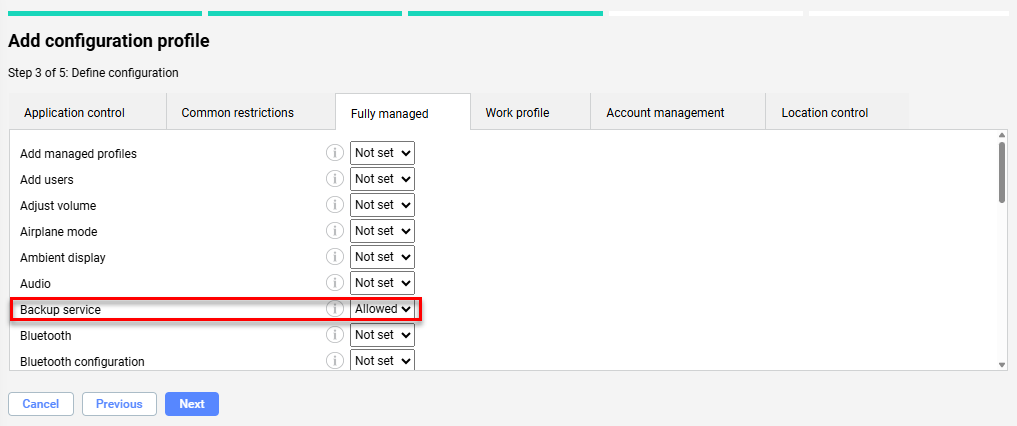
- Switch to the Fully managed tab and select Allowed from the Backup service drop-down menu, then select Next.

- Enter a name and description for the configuration profile and select Create, then Close to finalize the profile creation.
- Deploy the configuration profile to the fully managed Samsung devices.
Results: After finishing the application and configuration profile deployment, device users can launch the Smart Switch app on their devices.
Monitoring
You can monitor the progress of the configuration profile deployment either on the Management > Action log page or on the individual devices' Device page available under Management > Devices.