barscaret-downcaret-leftcaret-rightcaret-upcheckchevron-leftchevron-rightfile-pdfinfoinfo-circlesign-in-altsignin text-widthtimesyoutube

iOS > Device Data & Configuration

Activation Lock for iOS devices

Updated on May 23rd, 2025

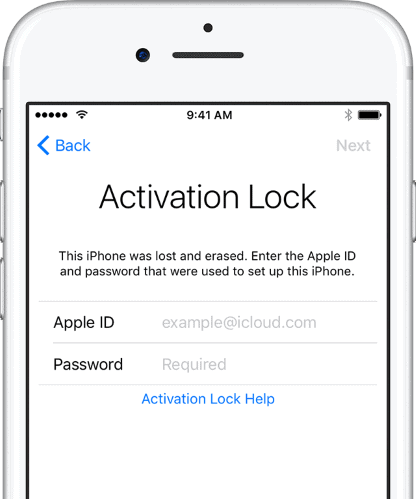
Activation Lock is Apple's security feature that is purposed to prevent anyone from using a lost or stolen iPhone or iPad without knowing the device user's Apple ID and password. Even if the device would be erased, Activation Lock continues to deter anyone from using the device.

Requirements for using Activation Lock on the device

Note: If your devices are not supervised, but you are interested in controlling the use of Activation Lock with Miradore, learn more about how to enable supervised mode with Apple Configurator. You can also supervise devices by enrolling them in Miradore through Apple Business Manager (previously Apple Device Enrollment Program).

The benefits of implementing Activation Lock

Apple's Activation Lock helps protect personal and company-owned devices by securing sensitive data and preventing unauthorized access. By requiring an Apple ID and password to erase or reactivate a device, it protects against data theft even if the device is lost or stolen. In addition, it simplifies device recovery in situations where a previous owner forgets to unlock the device before returning it to the company. This feature provides a reliable layer of security, ensuring peace of mind for both users and organizations.

Important information

Deploying the Activation Lock (Supervised) configuration profile does not turn Activation Lock on or off on the device. The configuration profile only enables or disables the option to activate or deactivate Activation Lock. To unlock a device on which Activation Lock is currently active, you can use the Activation Lock bypass code stored in Miradore or remove the lock using the Security action.

If a device already has an Activation Lock (Supervised) configuration profile deployed to it, and a new configuration profile with different settings is applied, the new profile's settings will replace the old profile's settings.

Control the use of Activation Lock with Miradore

Use of Activation Lock is allowed on eligible iOS devices manually enrolled in Miradore by default. If a device was enrolled through Apple Business Manager or Apple School Manager, use of Activation Lock is disabled until the device user signs in to their Apple account on their device. In both cases, using Activation Lock can be denied using the Activation lock (Supervised) configuration profile.

Important: The use of Activation Lock cannot be prevented using the configuration profile if the device user has already enabled Activation Lock for their device using Find My. Disabling Activation Lock in this case can only be done through Apple Business Manager or Apple School Manager.

To enable or disable the use of Activation Lock for a device, do the following:

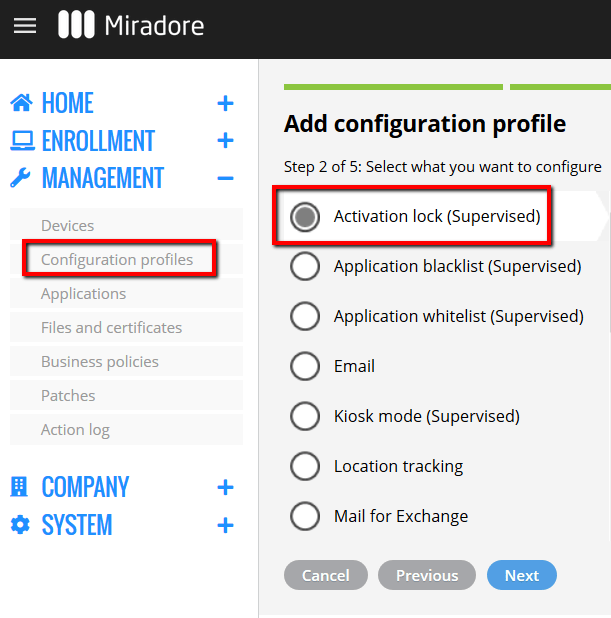
  1. Navigate to Management > Configuration profiles and select Add.
  2. In the Add configuration profile wizard, select iOS, then select Next.
  3. Select Activation lock (Supervised), then select Next.
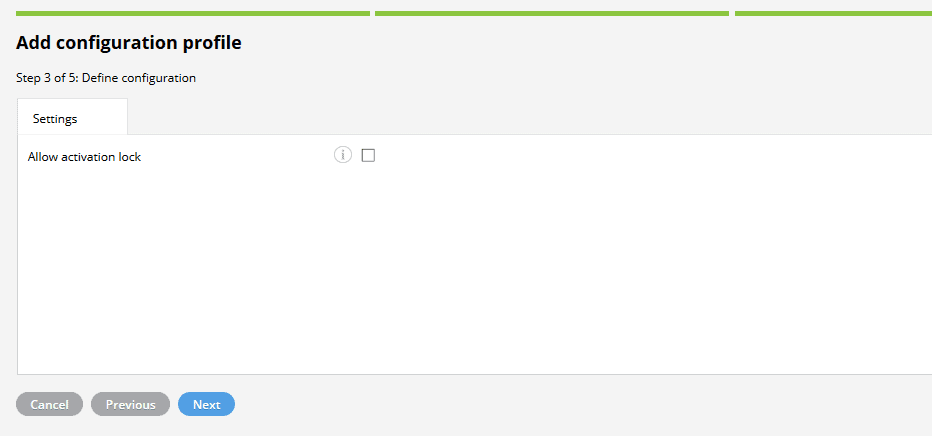
  4. Choose whether to allow the use of Activation Lock on the device:
    • To enable the use of Activation Lock, check the Allow activation lock box.
    • To disable the use of Activation Lock, uncheck the Allow activation lock box.
  5. Select Next.
  6. Enter a name and description for your configuration profile, then select Create.
  7. Deploy the configuration profile to the managed iOS devices.

Note: The configuration profile is ignored by devices that do not meet the requirements.

Disable Activation Lock on the device using the bypass code

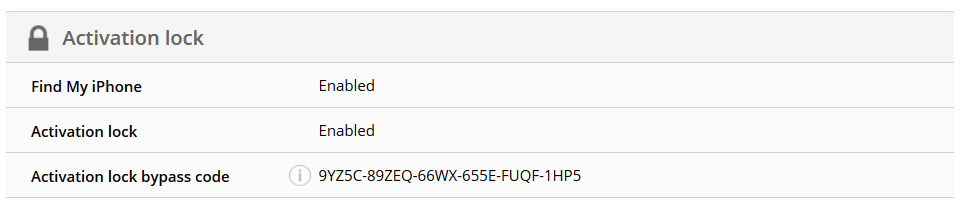
If a device was enrolled in Miradore through Apple Business Manager or Apple School Manager, a currently active Activation Lock can be removed using the bypass code stored by Miradore on the Device page.

  1. Navigate to Management > Devices and open the page of the device by double-clicking it.
  2. Find the Activation lock bypass codes on the Main tab, under Activation lock.
    Miradore - activation lock bypass code new ui
  3. On the device, leave the Email or Phone Number field empty and enter the Activation Lock bypass code in the Password field, then select Next.
    Important: When entering the bypass code in the Password field, enter only the numbers and letters. Do not use hyphens or spaces.

Results: The device is unlocked and Activation Lock is removed.

Disable Activation Lock through Miradore

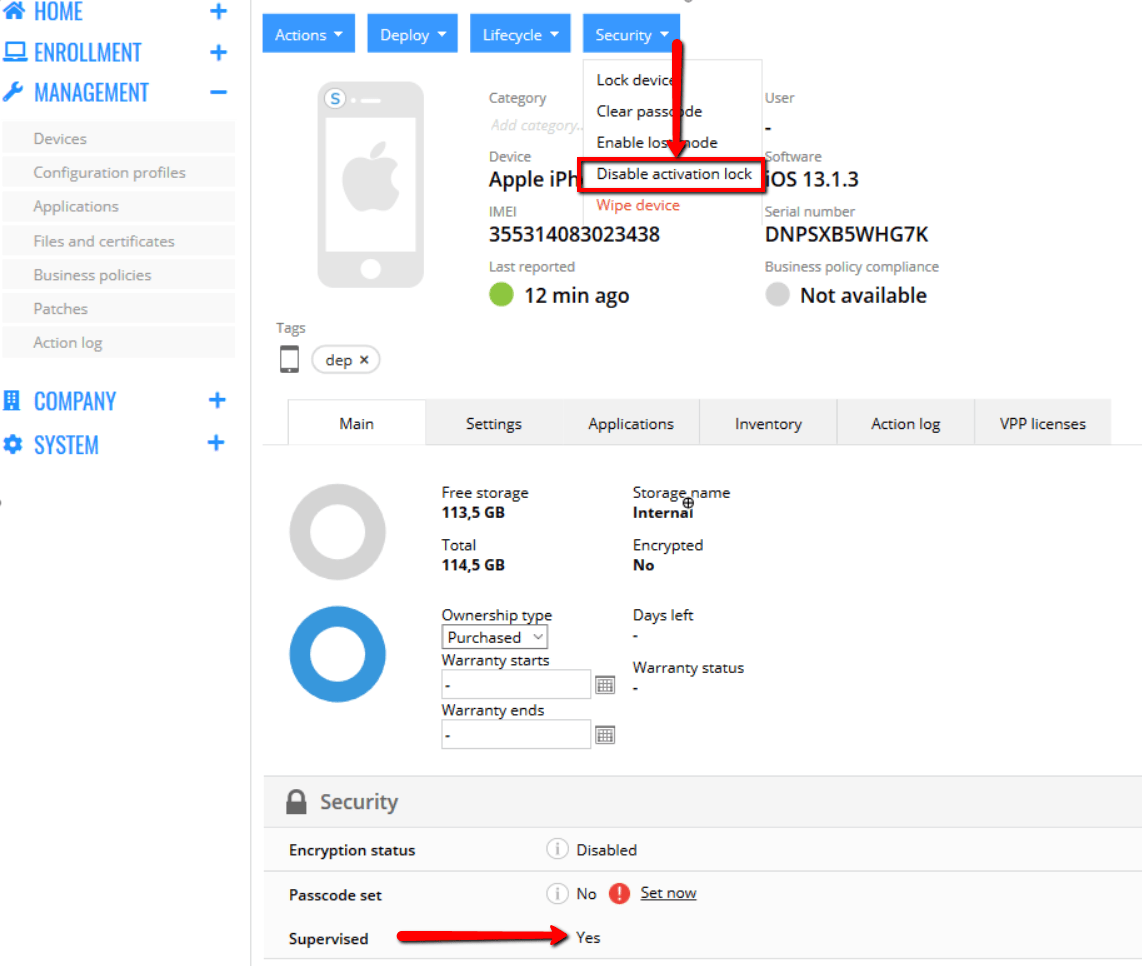
If Activation Lock is currently active on a manually enrolled device, you can unlock the device by using the Disable activation lock security action.

  1. Navigate to Management > Devices and open the page of the device by double-clicking it.
  2. Select Security > Disable activation lock.
    Miradore - activation lock disable new ui

Results: The Miradore server contacts Apple's activation server with the proper device identifiers and disables Activation Lock.

Note: If the device does not unlock immediately, select Back on the top of the screen. This way, the device will notice that Activation Lock has been disabled.

You can track the status of the action by opening the Action log tab on the device page.

Disable Activation Lock through Apple Business Manager or Apple School Manager

While you can turn off Activation Lock if you previously enabled its use through Miradore or used Miradore to turn on Lost Mode, Apple Business Manager and Apple School Manager offer the possibility to disable Activation Lock even in the following cases:

  • The device user turned on Activation Lock
  • The device user turned on Lost Mode

For detailed steps on how to do this, see Apple's support article for Apple Business Manager or Apple School Manager.

Note: After using the Erase All Content and Settings feature or Apple Configurator to wipe the device, it might still show Activation Lock as enabled. However, you can still set up the device without having to log in to the previous user's account.

Previous Article:
«

Next Article:
»