
This article explains how you can connect your Apple Business/School Manager account with Miradore MDM and start using Apple's Automated Device Enrollment.
If you don't know what ADE means, please read What is Apple's Automated Device Enrollment.
See the video or check out the step-by-step instructions below the video.

- Unless you haven't done so already, enroll your organization in Apple Business Manager (ABM) or Apple School Manager (ASM, for educational institutions). Please note that sometimes it may take several days for Apple to review the enrollment application.
- Link your Miradore site with the Apple Business or School Manager.
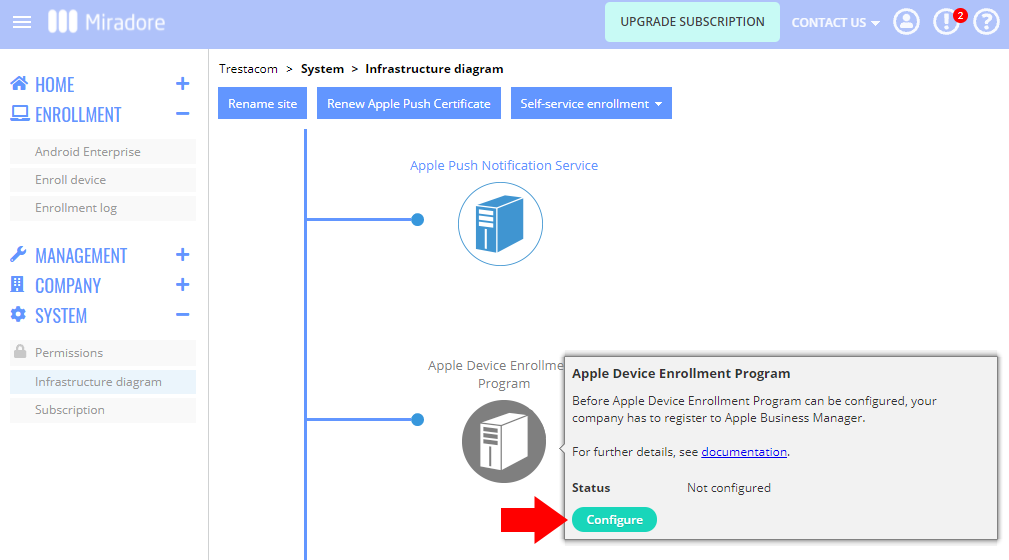
- Go to System > Infrastructure diagram in Miradore. Hover your mouse cursor over the Apple Device Enrollment Program icon and click Configure. Then download the public key certificate file "dep-public-key.crt".

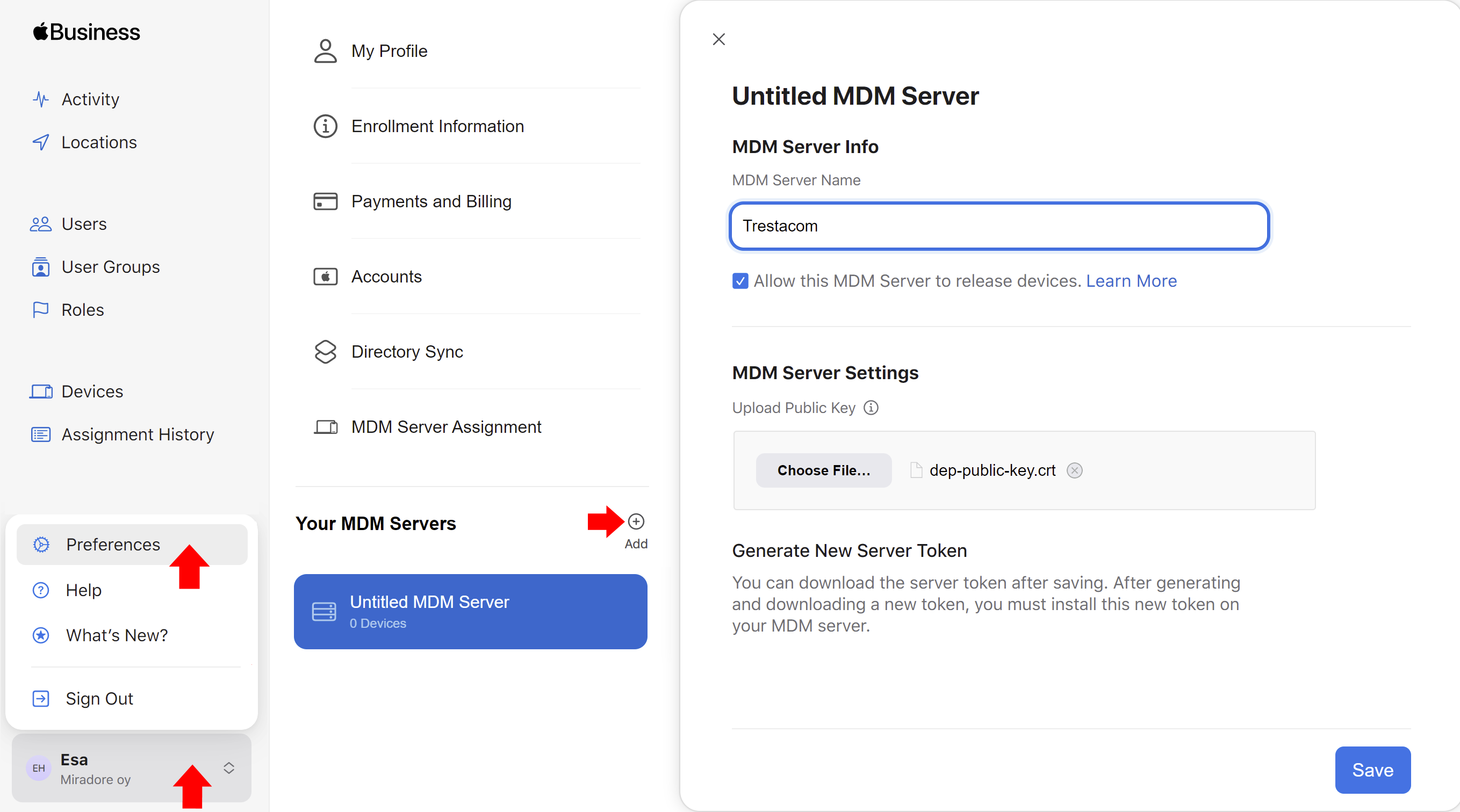
- Log in to Apple Business or School Manager and go to Preferences > Your MDM Servers and click Add.
- Enter the name of your Miradore site to the MDM Server Name field and upload your public key certificate file in the MDM Server Settings field. Then Save the changes.

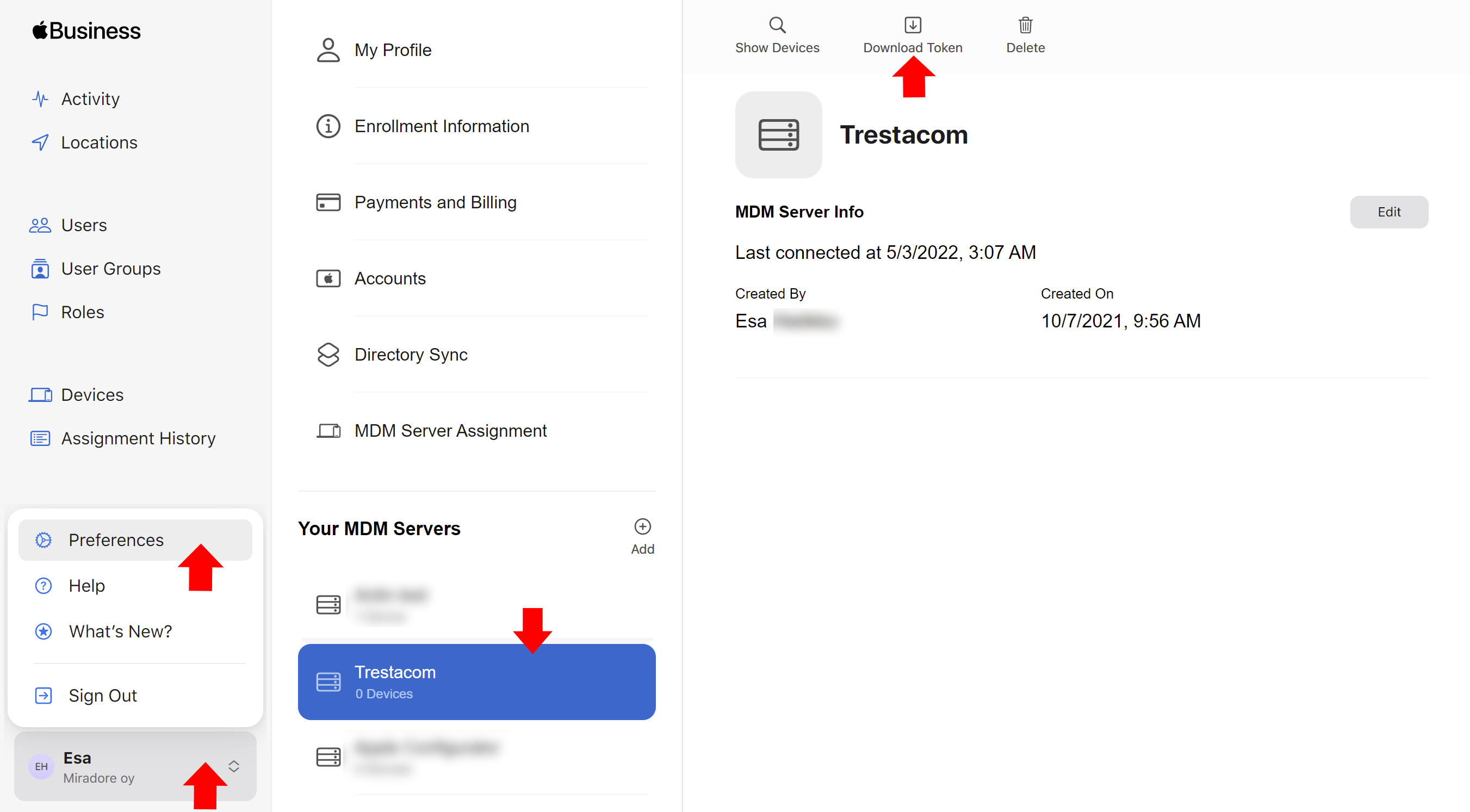
- Then download the MDM server token (a.k.a ADE/DEP authentication token) and then go back to Miradore. The file extension of this file is .p7m.

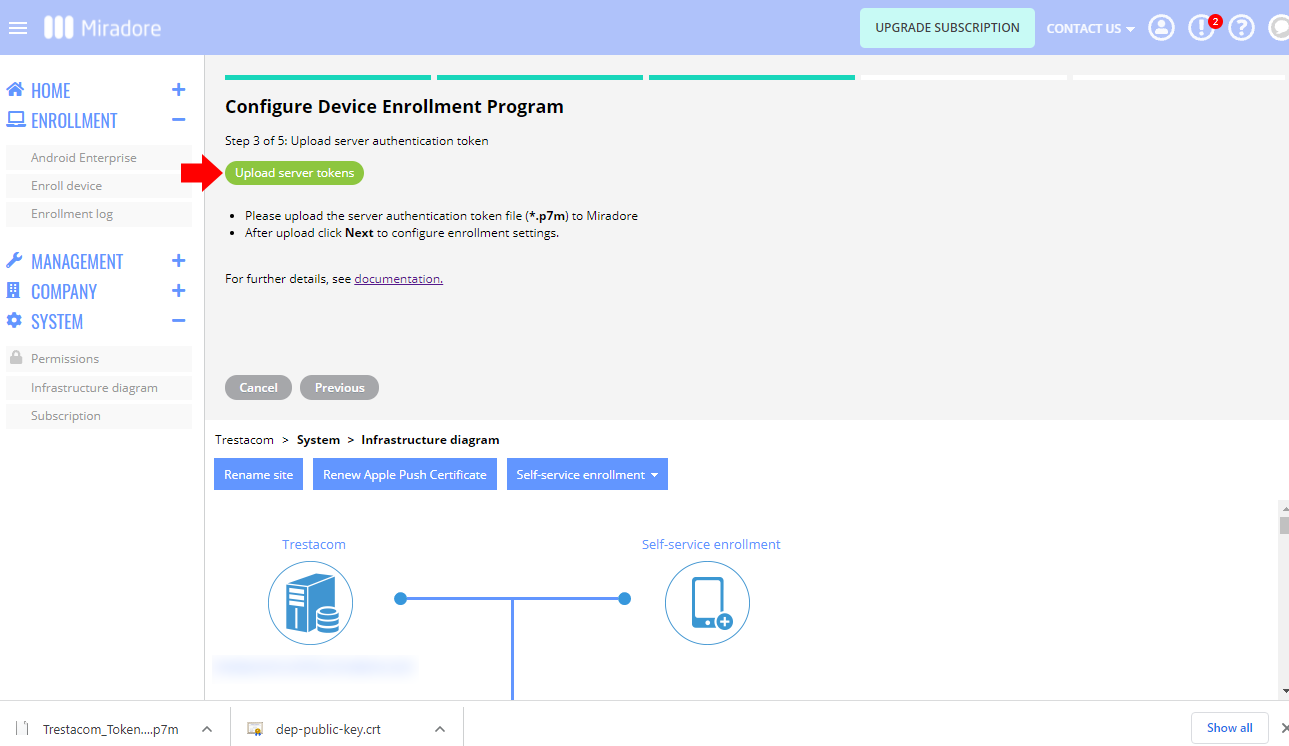
- Upload the ADE/DEP authentication token to Miradore. Please note that the token will be valid for one year. After a year, you must renew the token.

- Go to System > Infrastructure diagram in Miradore. Hover your mouse cursor over the Apple Device Enrollment Program icon and click Configure. Then download the public key certificate file "dep-public-key.crt".
- The final step is to configure the default enrollment settings for the devices. Here you can, for example, configure whether you wish to manage your organization's devices in the Supervised mode or not. On the iOS/macOS Setup screens tab, you can specify which setup screens should be skipped when a new or factory-reset Apple device is powered on for the first time. The Profile assignment method determines how the enrollment profile is deployed to your Apple devices. For more details, please read the Enrollment profiles for Apple's Automated Device Enrollment.

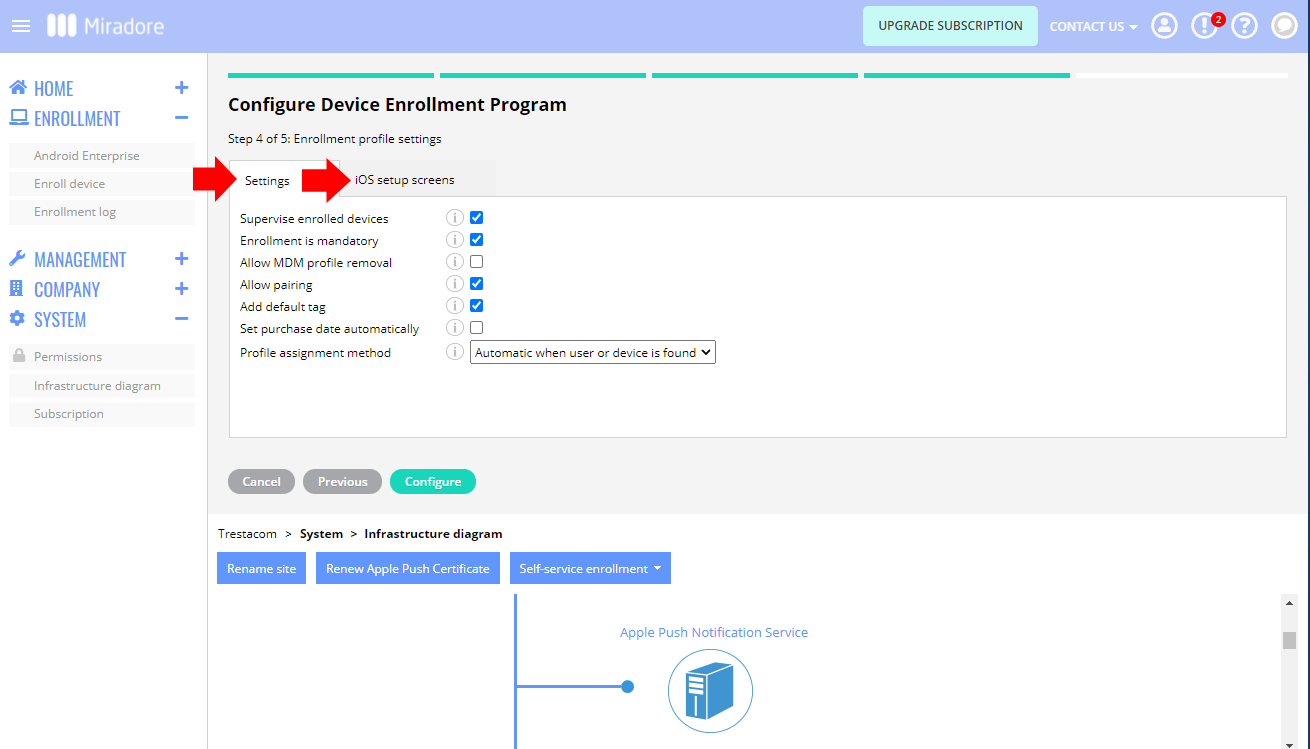
After these steps, you can start enrolling devices to Miradore using Apple's Automated Device Enrollment. For more details, see Enrolling Apple devices using ADE.
How does Automated Device Enrollment work?
Automated Device Enrollment controls how your organization's Apple devices behave when users turn them on for the first time after unboxing or after a factory reset.
For example, you can select which steps the devices' Setup Assistant presents to the device users, and which apps or configurations should be automatically installed on the devices.
During the process, the devices will connect with the management solution and get automatically configured according to your preferences.
Thanks to automation, there's no need for IT to physically handle the devices.
Have feedback on this article? Please share it with us!
Previous Article:
« What is Automated Device Enrollment (ADE)?
Next Article:
Enrolling Apple devices using Automated Device Enrollment (ADE) »