
Learn how to enable kiosk mode on your Knox-enabled Samsung devices.
Tip: While you can use the Kiosk mode configuration profile for your Android devices, we recommend you use the Home screen & kiosk mode configuration profile instead for improved stability and simplified kiosk mode management, including single-app and multi-app kiosk mode configurations.
Requirements
To configure kiosk mode on your Knox-enabled Samsung devices, the following requirements must be met:
- You must have a Miradore Premium or Premium+ subscription, or an active trial.
- The device must be a Knox-enabled Samsung device.
- The device must be running Android version 7 or later.
- The device must be enrolled to Miradore as a Fully managed device.
- The Samsung Knox Privacy Policy must be accepted in the Miradore client.
- The applications to which the device is restricted must be installed before deploying this configuration profile.
Learn how to deploy applications on your managed devices using Miradore in Application management and deployment for Android.
Important: Devices in kiosk mode must always be connected to the internet.
Steps
- Install a kiosk launcher application on your device.
The launcher can be any kiosk launcher application, such as SureLock Kiosk Lockdown.
Tip: We recommend deploying the kiosk launcher via Miradore. This way, you can preconfigure the app using managed configurations, which, depending on the application, can reduce or completely eliminate the effort of manual configuration on each managed device. - Navigate to Management > Configuration profiles and select Add.
- Select Android (Knox), then select Next.
- Select Kiosk mode (Knox), then select Next.
- On the Kiosk mode settings tab, select Enabled from the Kiosk mode state drop-down list.
- Enter the package name of the kiosk launcher application in the Kiosk mode application field.
The package name is the unique identifier of the application in the Google Play store. It can be found at the end of the URL on the application's Google Play store page. For example, the Miradore client application's package name is com.miradore.client.v2, as shown in its Google Play store URL: https://play.google.com/store/apps/details?id=com.miradore.client.v2.
If the application you want to run in kiosk mode is an APK app, find its Identifier by doing one of the following:- Navigate to Management > Applications and open the app's page by double-clicking its row in the table.
- Navigate to Management > Devices, open the page of the device on which the app is installed and find the app's Identifier on the Applications tab.
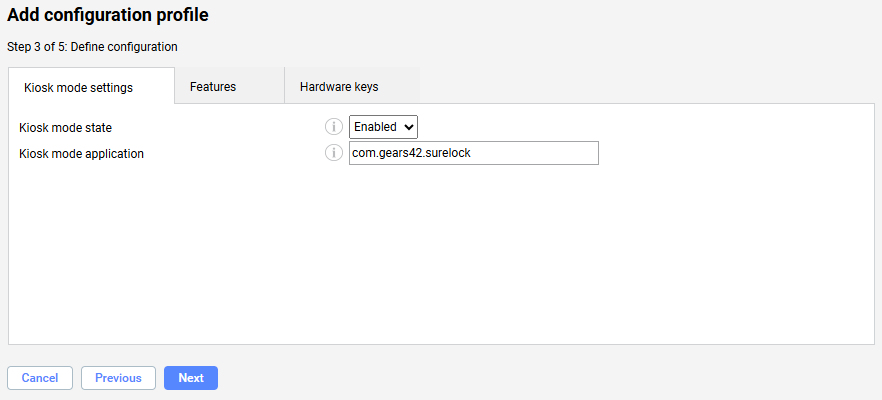
Example of a Kiosk mode (Knox) configuration profile with SureLock Kiosk Lockdown defined as the kiosk launcher - Configure available features and system restrictions on the device on the Features and Hardware keys tabs.
- Select Next.
- Enter a name and description for the configuration profile, and select Create to finalize the configuration.
- Select Close to exit the wizard.
- Deploy the configuration profile to the managed Android devices as described in Deploying a configuration profile.
Tip: Consider adding the configuration profile to a business policy to automate deployment. - Configure the kiosk launcher application on the device.
Note: The kiosk launcher application must be configured on each device manually, unless it is preconfigured.
Previous Article:
« Changing applications on the home screen in the Home screen & kiosk mode configuration profile
Next Article:
Disable kiosk mode »