
Miradore is compatible with Samsung Knox Mobile Enrollment (KME) which provides IT administrators a streamlined way to enroll Samsung devices in an MDM/EMM solution without having to manually enroll and configure each device.
Please note that you can also use zero-touch enrollment for newer Samsung devices.
Benefits of using Samsung KME
- KME simplifies the initial setup and enrollment of Samsung devices especially when a company requires bulk device enrollment with little configuration variance amongst the devices deployed.
- KME makes device enrollment easy for device users because they're not required to do a thing. Once they receive the device and power it on, the device automatically configures itself according to the settings provisioned by the enterprise via Miradore.
- KME-enrolled devices cannot be tampered with. Even if a KME-enrolled device is factory reset, the Miradore Client will be re-installed once the device is powered on and connected to a Wi-Fi or 3G/4G network again.
KME requirements
- Check that KME is supported in your country
- Register for a Samsung Knox Portal account
- Create a Samsung Account
- Make sure your Samsung devices support Samsung Knox
The following table is Samsung's general guideline on Knox software support requirements.
| Knox version | 2.4 | 2.4.1 | 2.5 | 2.6 | 2.7 | 2.7.1 | 2.8 | 2.9 |
| KME enrollment via NFC | ✔ | ✔ | ✔ | ✔ | ✔ | ✔ | ✔ | ✔ |
| Out-of-box enrollment (Wi-Fi) | ✔ | ✔ | ✔ | ✔ | ✔ | ✔ | ✔ | ✔ |
| Out-of-box enrollment (4G/LTE) | ✔ | ✔ | ✔ | ✔ | ✔ | |||
| Factory reset protection/Bypass skip setup wizard | ✔ | ✔ | ✔ | |||||
| Knox configure + Knox Mobile Enrollment same device compatibility | ✔ | ✔ | ||||||
| Knox Mobile Enrollment with Device Owner mode support | ✔ | ✔ |
Instructions link Samsung KME with Miradore
Here's how to connect the Samsung KNOX Mobile Enrollment to Miradore.
You can enroll Fully managed and Fully managed with work profile devices in Miradore through KME. If you wish to use Work Profile, there is a different way to enroll devices.
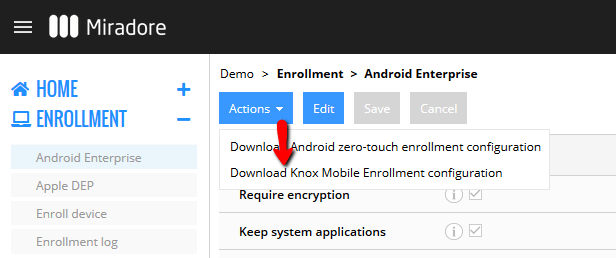
1. Log in to Miradore and go to the Enrollment > Android Enterprise page. Choose Actions > Download Knox Mobile Enrollment configuration from the page toolbar to download the Knox Enrollment JSON template to your computer.
2. Log in to the Samsung Knox Mobile Enrollment portal. Go to the MDM Profiles page and click Create profile to add an MDM profile.

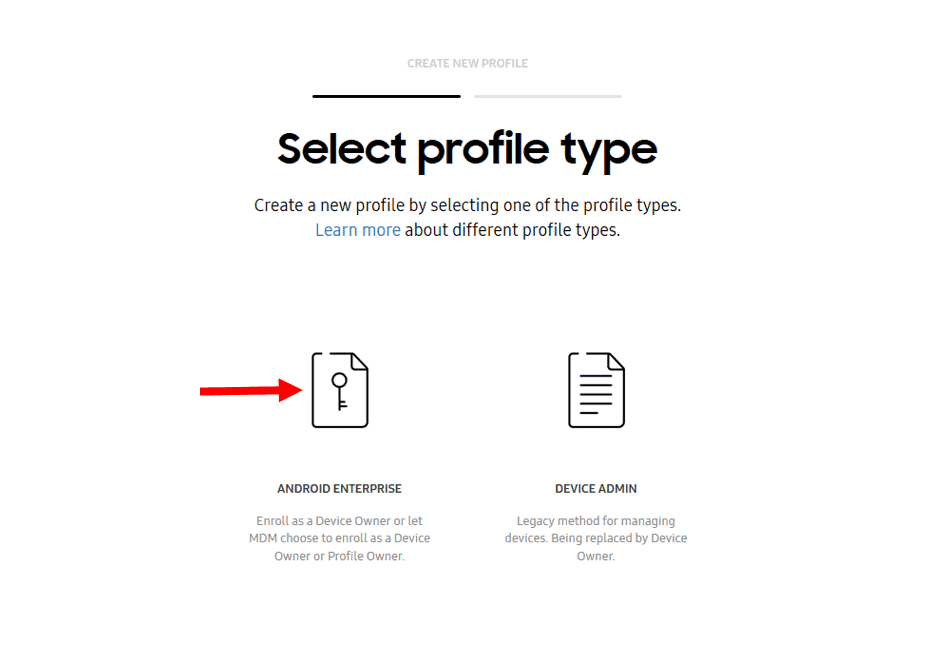
3. Select Android Enterprise as the profile type.
3. Next you are asked to fill in the Android Enterprise profile details.
-
- Profile name: For example the name of the organization whose devices are managed.
- MDM information: Choose "Force Device Owner enrollment".
- Pick your MDM: Choose "Miradore".
- MDM Agent APK: This field will be prefilled for you.
- MDM Server URI: No need to fill this field.
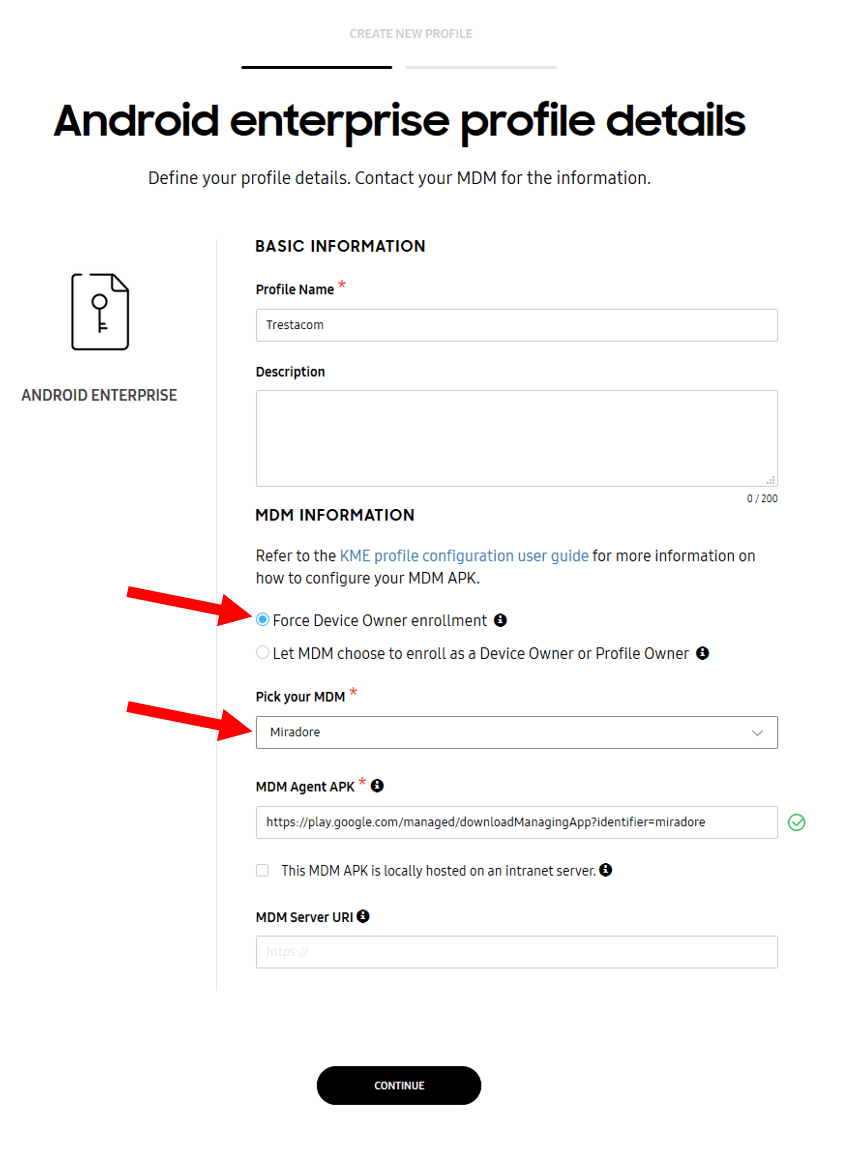
Click "Continue".
4. Define Android Enterprise profile settings.
-
- Custom JSON Data (as defined by MDM): Copy the contents of the JSON file you downloaded from Miradore and paste the contents into this field.
- System applications
- Disable all system applications: Select this checkbox to ensure all apps are disabled and unavailable to the device owner supported profile.
- Leave all system apps enabled: Select this checkbox to ensure all pre-installed system apps are enabled and available to the profile. If this option is not selected, only a limited set of default system apps (My Files, Contacts, Google Play Store) displayed in the device's apps tray. Systems apps reside within the device's /system/app read-only folder and cannot be installed or removed by the device user.
- Company name: Your organization's name. This name will be shown to device users at the time of device enrollment.
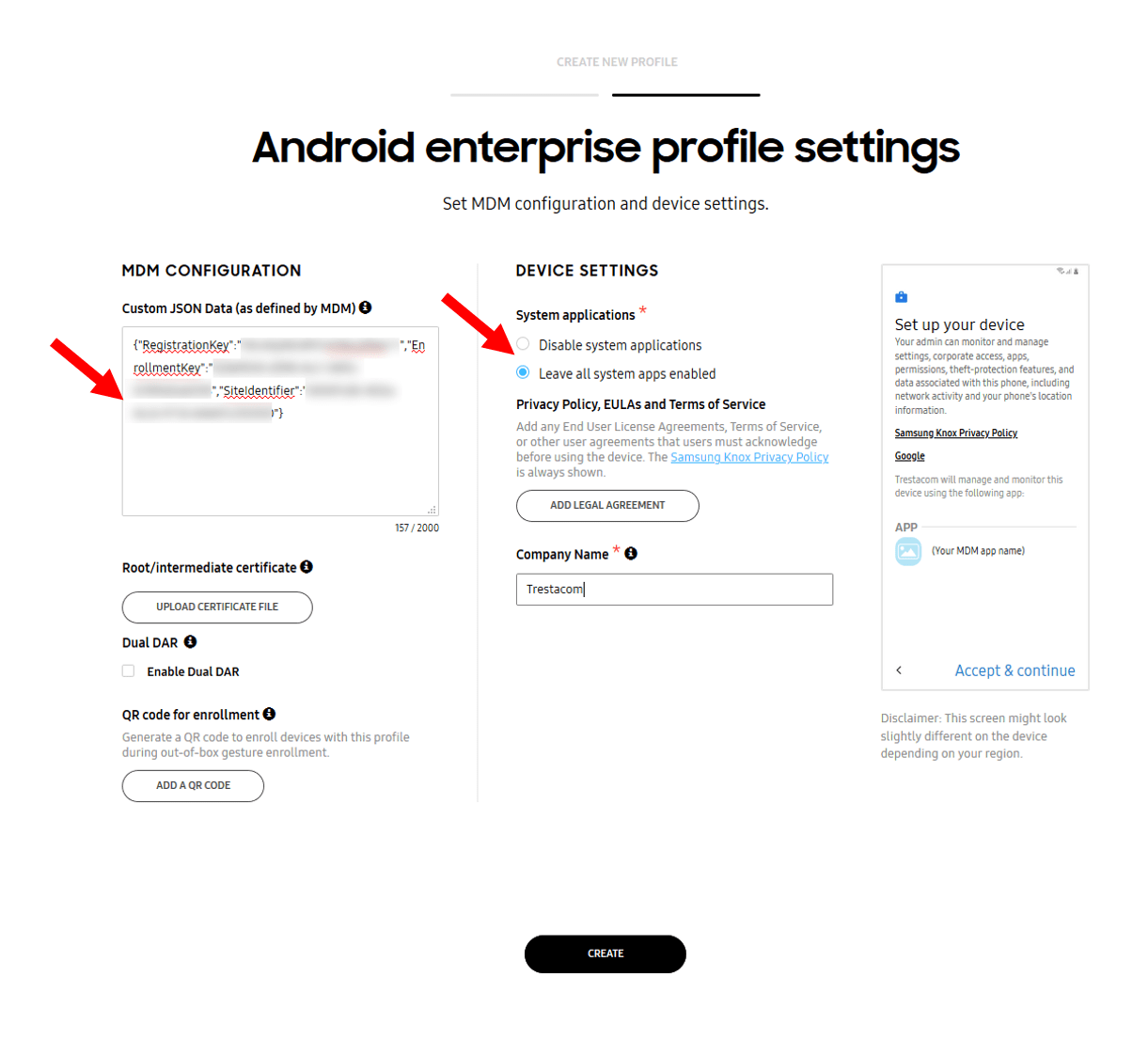
Make sure that the Dual DAR is not enabled since this causes problems in device enrollment to Miradore.
5. Now you can assign this new MDM profile to those devices via "Devices" in the menu available on your KME account.
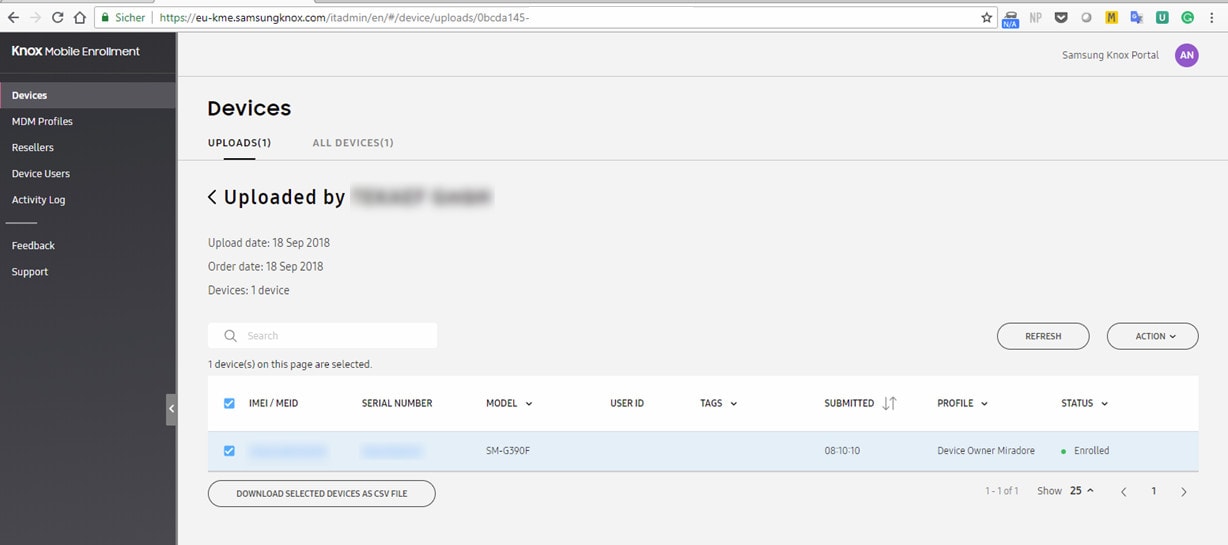
6. After you assign the MDM profile, everything is set up for enrolling the device to Miradore via KME, this is done from the "Welcome screen" before the device is set up if the device has been used already, it must be factory reset first.
The device must have access to the internet during enrollment, either via WiFi or unlocked SIM card with data, otherwise, it will not be enrolled via KME.
7. Protip: On the Resellers page in Knox Mobile Enrollment portal, you can enable auto-assignment of MDM profile(s) to the devices bought from a selected reseller(s).
This is a powerful feature if you always want to enroll devices bought from a certain reseller(s) to the same Miradore site.
Additional information
For more information about KME, check Samsung's website.
How to add devices without having a reseller
Samsung KME allows companies to add their devices to the program even if the device was not purchased from a KME-capable reseller. Many companies have had Samsung devices in use for quite some time before they even heard of KME. Getting these devices among the KME naturally provides many benefits, such as zero-touch enrollment, locking the device to a company account, and forced enrollment.
To add devices to Samsung KME, please see read the Samsung Knox Deployment App documentation from the manufacturer themselves for the latest instructions. The Knox Deployment app can be downloaded from the Google Play store.
To add a device to KME you need also another, assisting device where the app is installed. Log into the app using your Knox Mobile Enrollment portal account. In the app, you can select whether to use Bluetooth/NFC/Wi-Fi to deploy the selected KME profile to the device being added to your KME account. Once completed the application will ask whether to reset the device and enroll it to the chosen MDM.
Have feedback on this article? Please share it with us!
Previous Article:
« Enrolling Android devices without a camera or Google services
Next Article:
Android Zero-touch enrollment with Miradore »