
This article describes what device retirement means and how you can do it in Miradore.
Device retirement is the last phase of the device lifecycle, and it is used to remove the device from the device registry (Management > Devices page).
What happens when you retire a device:
- The status of the device changes from active to retired.
- Device retirement frees up the device's Miradore license.
- Retirement triggers the unenrollment of the device from Miradore.
- If there are actions for the device in the queue, all, except the security actions, are canceled.
Fully managed Android devices and iOS Shared iPads will be wiped
Android devices managed using the Fully Managed Device (Device Owner) mode of Android Enterprise, will be completely wiped when you retire them from Miradore. Retirement wipes also iOS devices in multi-user mode (enrolled as Shared iPads).
How to retire a device in Miradore
1. Go to the Devices page on Management > Devices.
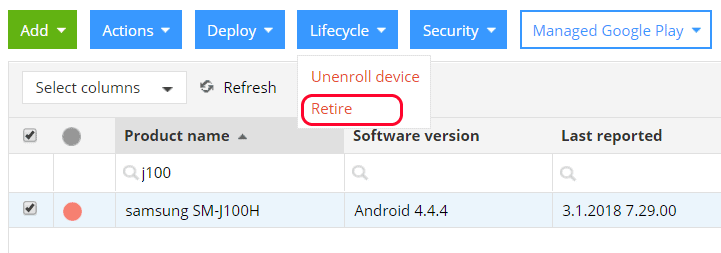
- On the Devices page, choose the device you want to retire and click the dropdown button Lifecycle to select Retire action.
- You can do the same thing also through the Device page.
2. It is also possible to retire devices via API by choosing the method DELETE under the Device item. The device id is required as a parameter.
- DELETE https://online.miradore.com/<sitename>/api/v2/Device/{id}
Important information
Administrators in Miradore can see retired devices from Company > Retired devices. After the retirement, the device information is available on the page, as well as the information regarding the person who has removed the device and when it has taken place.
Please note that:
- You can not edit a retired device, for example, remove tags from the device.
- Removal history information is not available to the devices deleted from Miradore before May 2019.
If there is a need to reactivate a managed device, you have to re-enroll it to the system. For other devices, there is a Re-activate button on the device form.
Have feedback on this article? Please share it with us!
Previous Article:
« Adding other devices to Miradore
Next Article:
How to unenroll a device »