
Enrollment credentials are used to validate the enrollment, and to add the device to your Miradore site. Miradore generates the enrollment credentials, which include a one-time-only valid username and password. The username format is ***@online.miradore.com and the password is four characters long. The enrollment credentials are included in the enrollment email message that is sent to the user.
Create enrollment credentials in Miradore
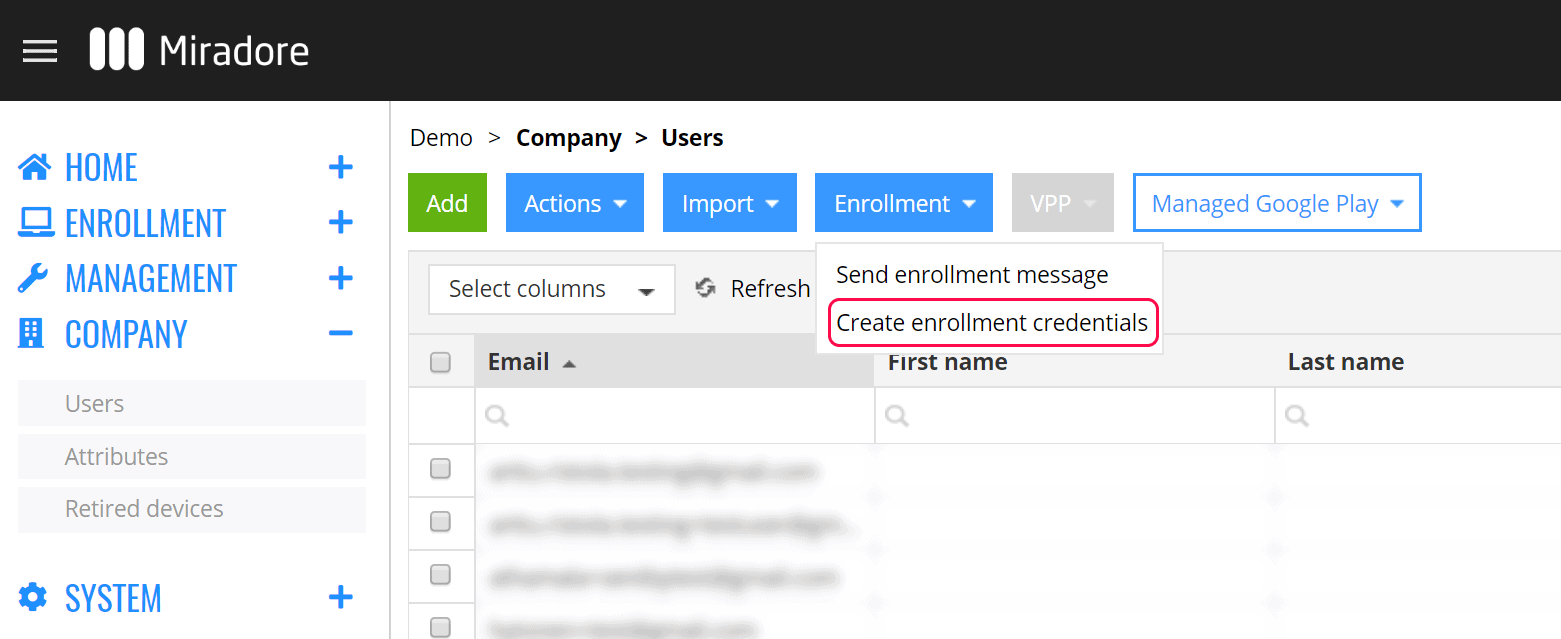
Administrators can create enrollment credentials from Company > Users page with the dropdown action button Enrollment.
1. Choose the user or multiple users to who you want to create the credentials. Select Create enrollment credentials -action under the Enrollment button in order to open the wizard.
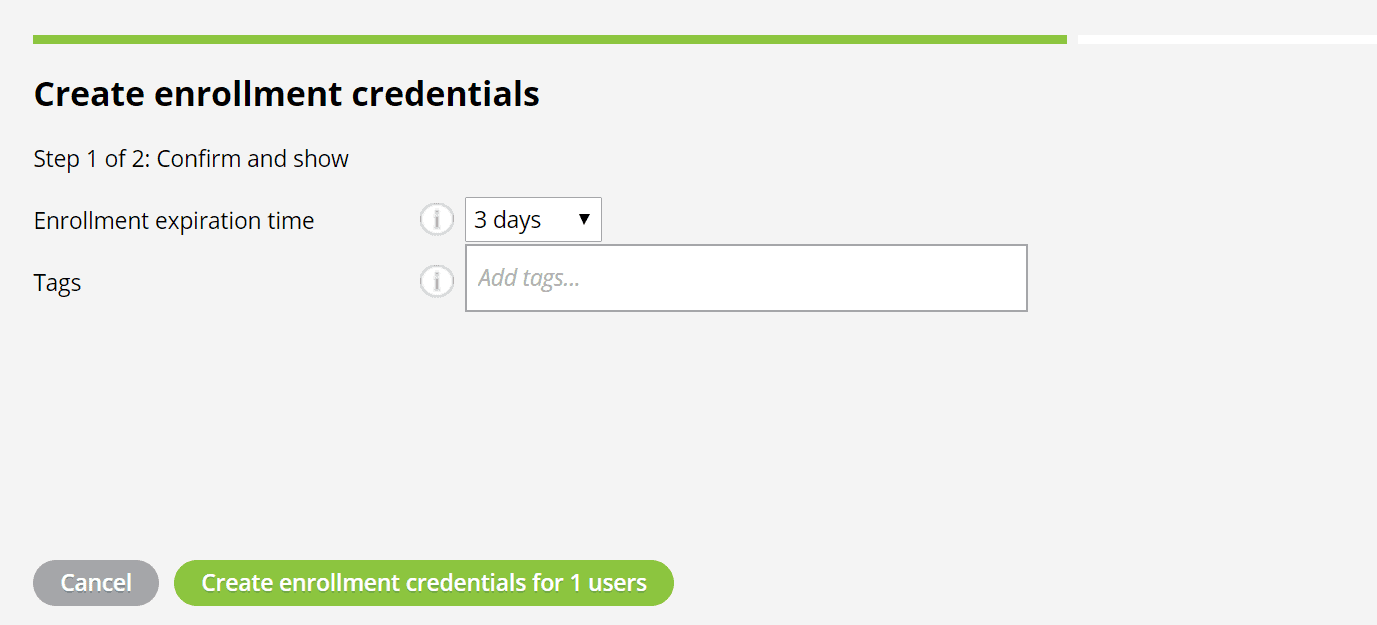
2. Follow the instructions of the wizard.
Have feedback on this article? Please share it with us!
Previous Article:
« Enrolling a device using the wizard
Next Article:
Generating the Company passcode »