
This article instructs how to add devices one by one to Miradore with a process known as device enrollment. Depending on the device platform and chosen device management type, there is some variation in the enrollment steps. This article considers the most common way to enroll devices to Miradore.
For platform-specific enrollment instructions, see the links below:
Before you start
The management of Apple devices requires the use of the Apple Push Notification service (APNs). You need to have a company-specific certificate to access the service. Please see the article how to create an Apple Push Certificate.
It is recommended for iOS users to use the built-in Safari browser when enrolling their devices.
How to enroll a device in Miradore
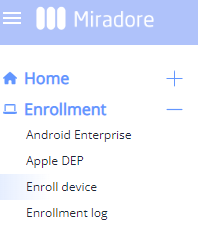
The most straightforward method is to use the device enrollment wizard available in the Enroll device view in Miradore.
1. Choose the platform of the device and select the management type if needed.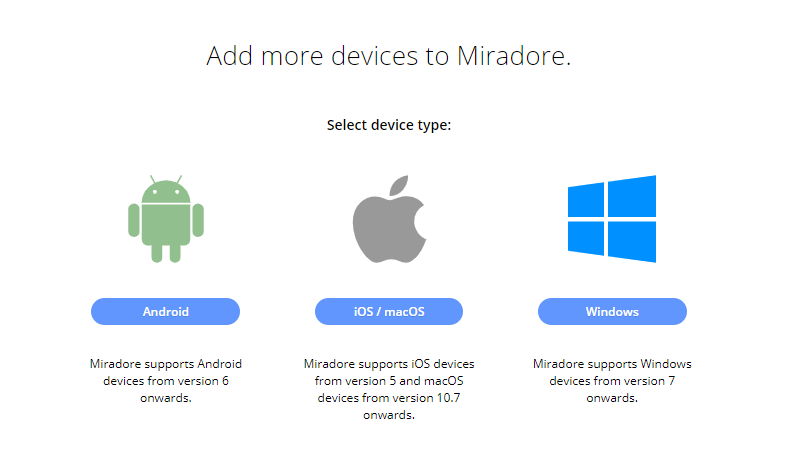
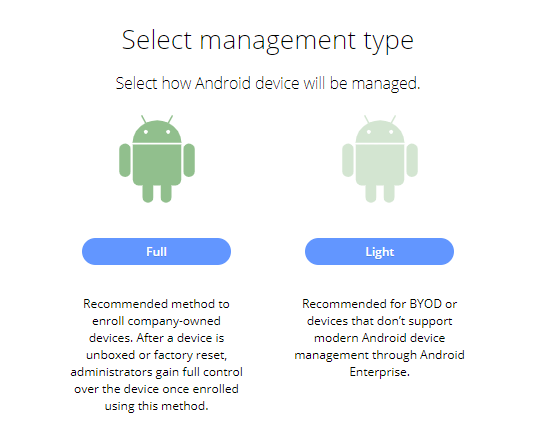
2. For the Android and Windows platforms, you need to choose either the Full or Light enrollment method.
Android device options:
Windows device options:
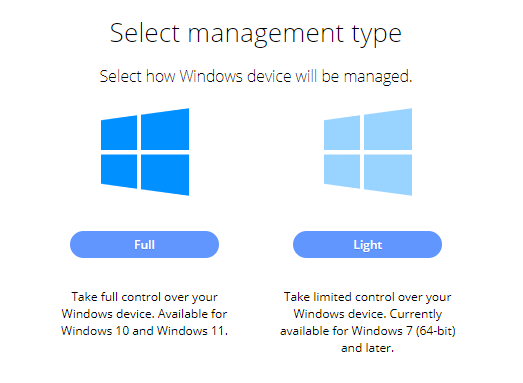
Choose Light when you're enrolling a Windows 7 or 8 device or an employee-owned Android device you want to manage with the Work profile.
Full enrollment is the most suitable option for managing Windows 10 and Windows 11 devices and company-owned Android devices.
See Android device management and Windows device management articles for more information.
3. Add the user of the device by entering the user's email address.
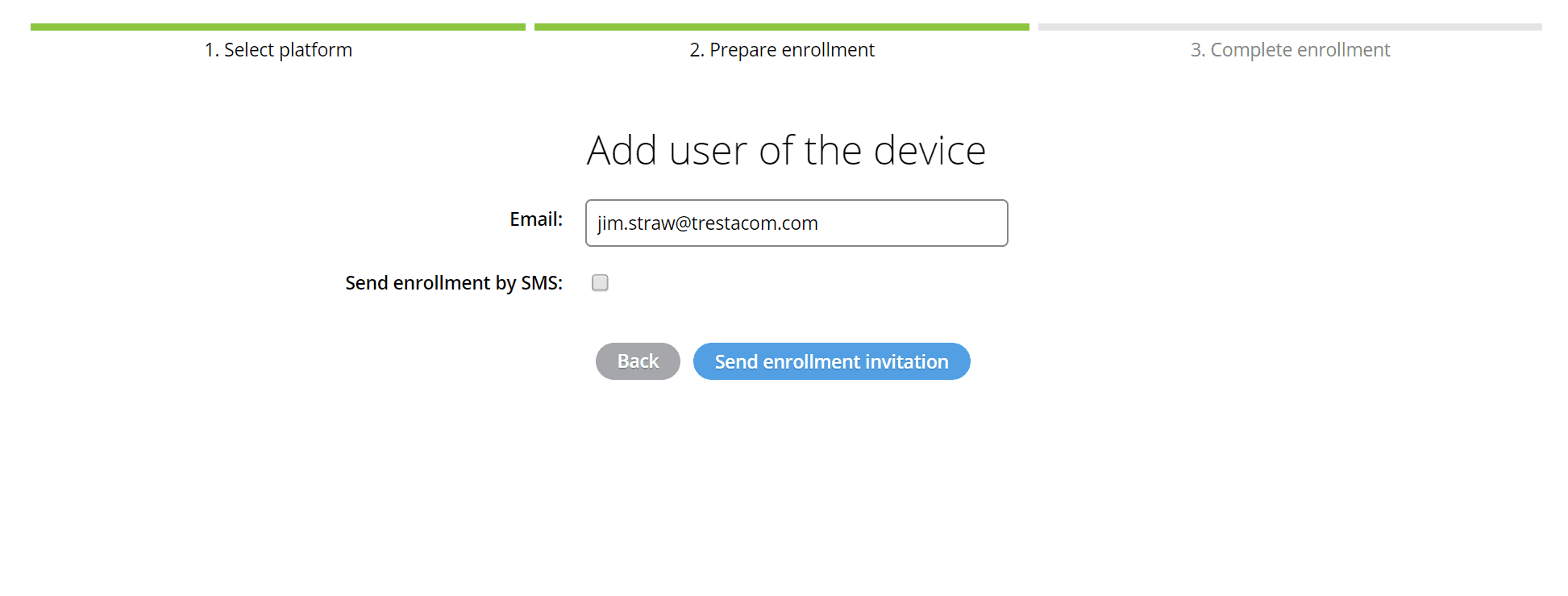
4. In most enrollment cases, you can choose to send the enrollment invitation to the user via email and/or SMS.
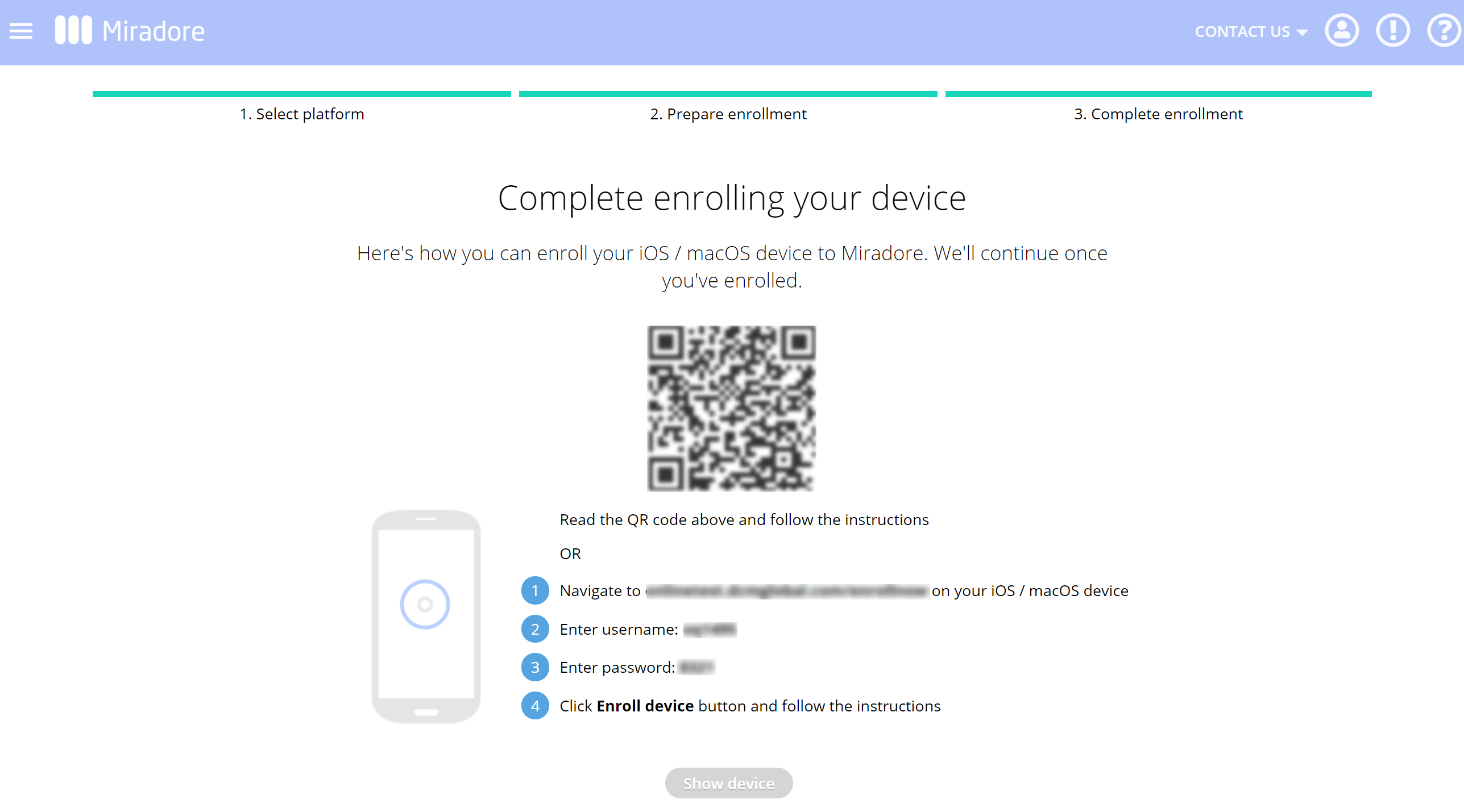
When you click Send enrollment invitation, Miradore automatically generates unique one-time enrollment credentials and, if chosen to do so, sends them to the user with instructions to follow. When the user enrolls their device, Miradore uses the enrollment credentials to validate the enrollment and to add the device to your Miradore site. You can also forward enrollment instructions to the user if needed:
5. Depending on the chosen enrollment method, the enrollment can be done with the provided QR code and/or with the enrollment credentials. If the administrator doesn't want to use the QR code, he can enroll the device by clicking the provided link and using the shown enrollment credentials to complete the enrollment.
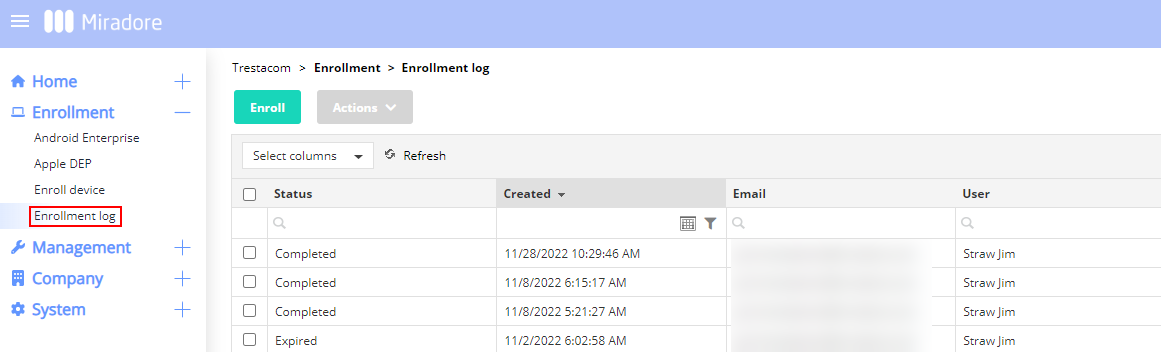
6. You can track the status of all device enrollments on the Enrollment > Enrollment log page in Miradore. When the enrollment status is completed, you can view the device by double-clicking on it.
More information:
Have feedback on this article? Please share it with us!
Previous Article:
« Device enrollment
Next Article:
Creating enrollment credentials for the user »