
The Application update policy is a device-specific configuration profile. It enables administrators to control the automatic installation of updates for Mac applications installed through Apple Business or School Manager.
Requirements
- Miradore Premium plan
- Supported on macOS 10.13.4 and later
- Administrator or Editor role in Miradore
- Update policy applies only to the software installed via Apple Business or School Manager
How to check which apps have an update available?
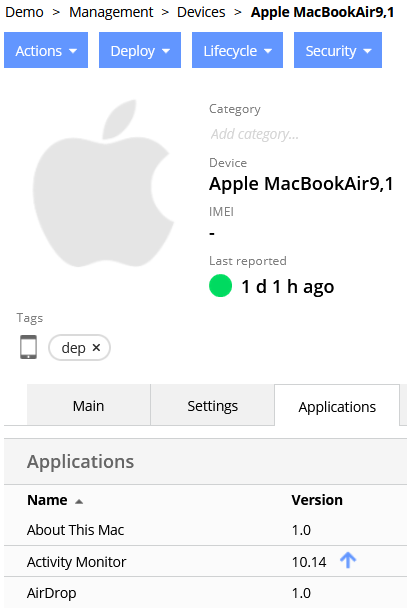
With Miradore, you can check which apps, installed on a Mac, have an update available. To do this, Open the Device page and go to the Applications tab. There, you will see a blue arrow icon next to those applications which have an update available. See the picture below.
How to update the software on your Macs automatically?
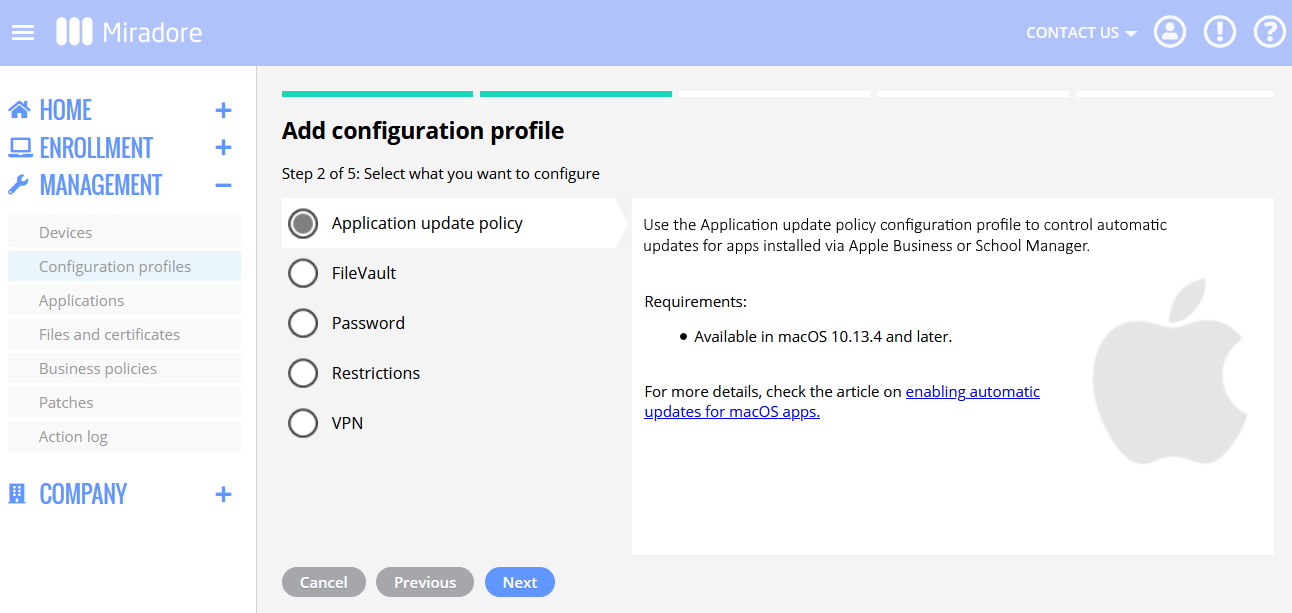
- Navigate to Management > Configuration profiles > macOS and choose the Application update policy.

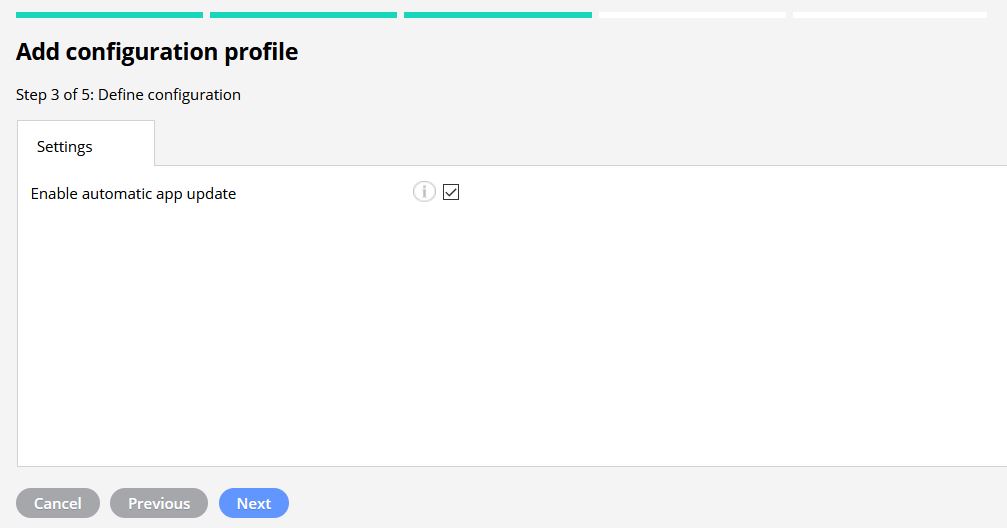
- On the profile settings, enable automatic app updates.

- The final step is to deploy the configuration profile to the Macs for which you want to enable automatic software updates. See Deploying configuration profiles for more instructions.
How to manually update Mac software?
Check How to update apps on Macs article if you are looking for a manual way to update software that has been deployed using a PKG package.
Have feedback on this article? Please share it with us!
Previous Article:
« Troubleshooting macOS application deployments
Next Article:
How to manually update apps on iOS or macOS devices? »