
Remote lock is a security feature designed to prevent the misuse of a device if it gets lost or stolen. Mobile devices can be unlocked easily if a passcode is not required on the devices. Hence it is recommended to enforce a passcode policy for mobile devices when you start managing them with Miradore. In the passcode policy, you can define complexity requirements for the passcode.
The remote lock feature is supported on:
- Android
- iOS
- macOS
Steps for remotely locking a device
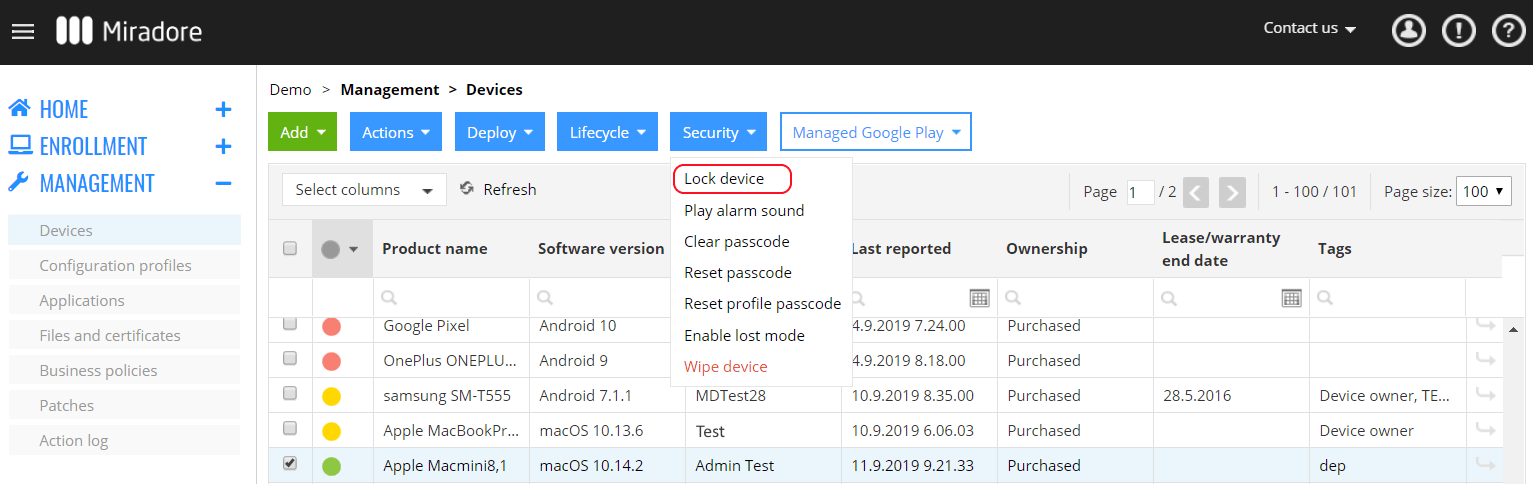
1. Open Devices under the Management menu. A list of devices opens. Select the device you wish to lock and choose Lock device action under the Security dropdown button. You can also access a single device page and lock the device from there.
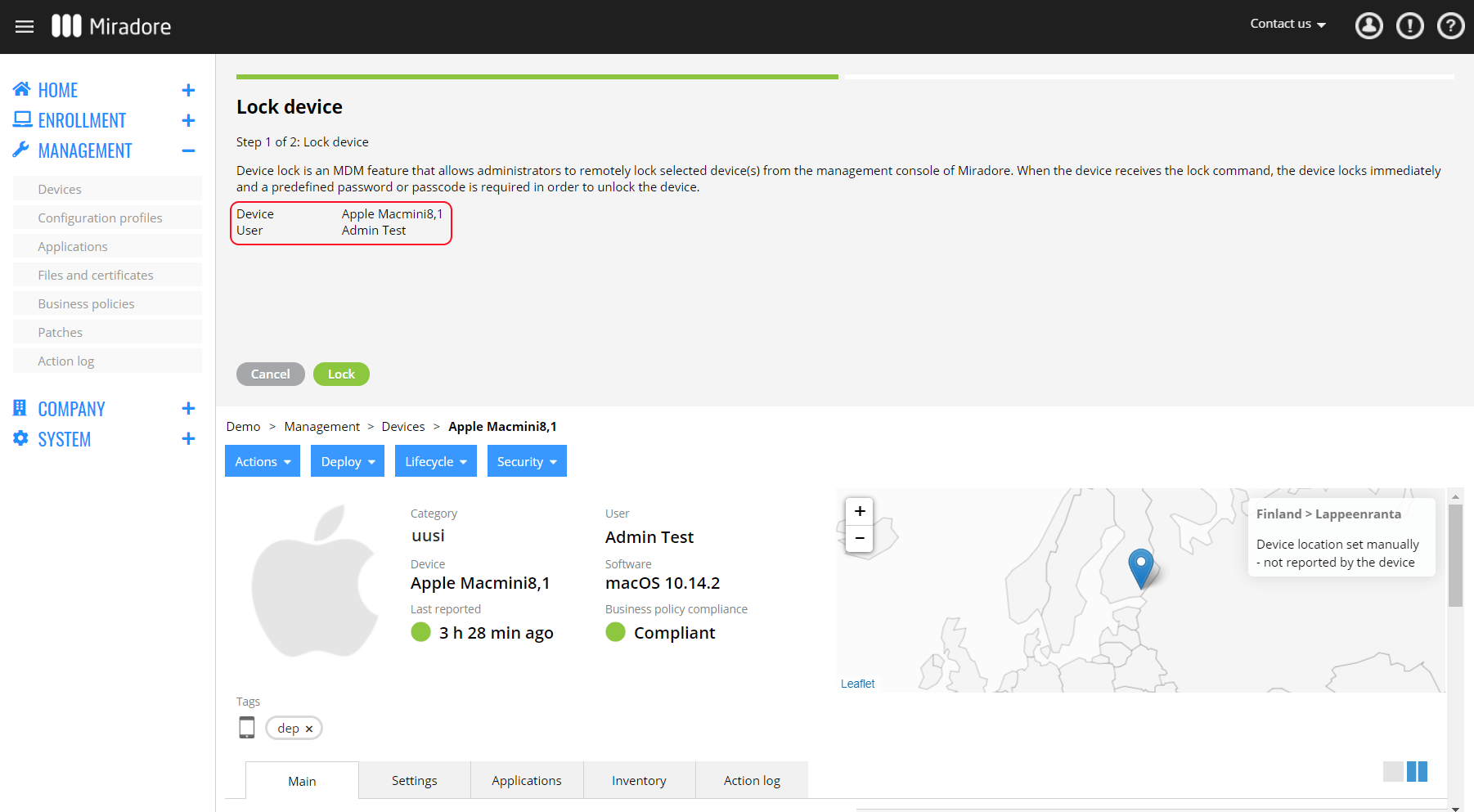
2. From the opened Lock device wizard, verify that the device and its user match the device that you wish to lock and click Lock.
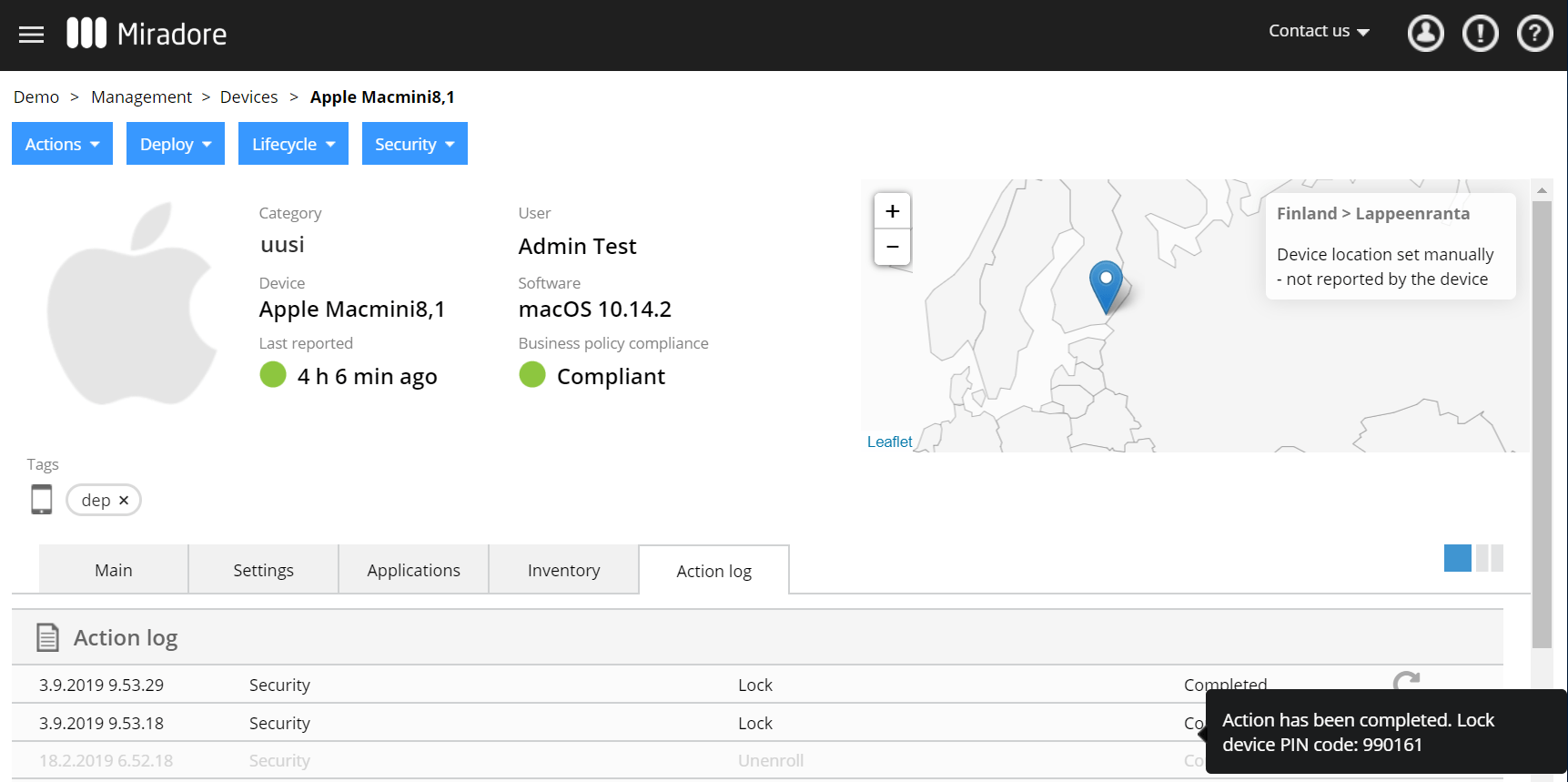
3. After the device lock has been sent to the device, you can follow the progress from Management > Action log or from the Action log tab of the device page. There you can see the status of the performed security actions.
Unlocking a device
After the device has been locked, the user needs to enter the device passcode to continue the use of the device. The exception to this are macOS devices, which can be unlocked only using the Lock device PIN code.
The latest PIN code can be found in the Security table on the device page's Main tab. PIN codes for previous actions can be found in the Action log tab of the device page when hovering over the action status.
Have feedback on this article? Please share it with us!
Next Article:
Remotely wiping a device »