
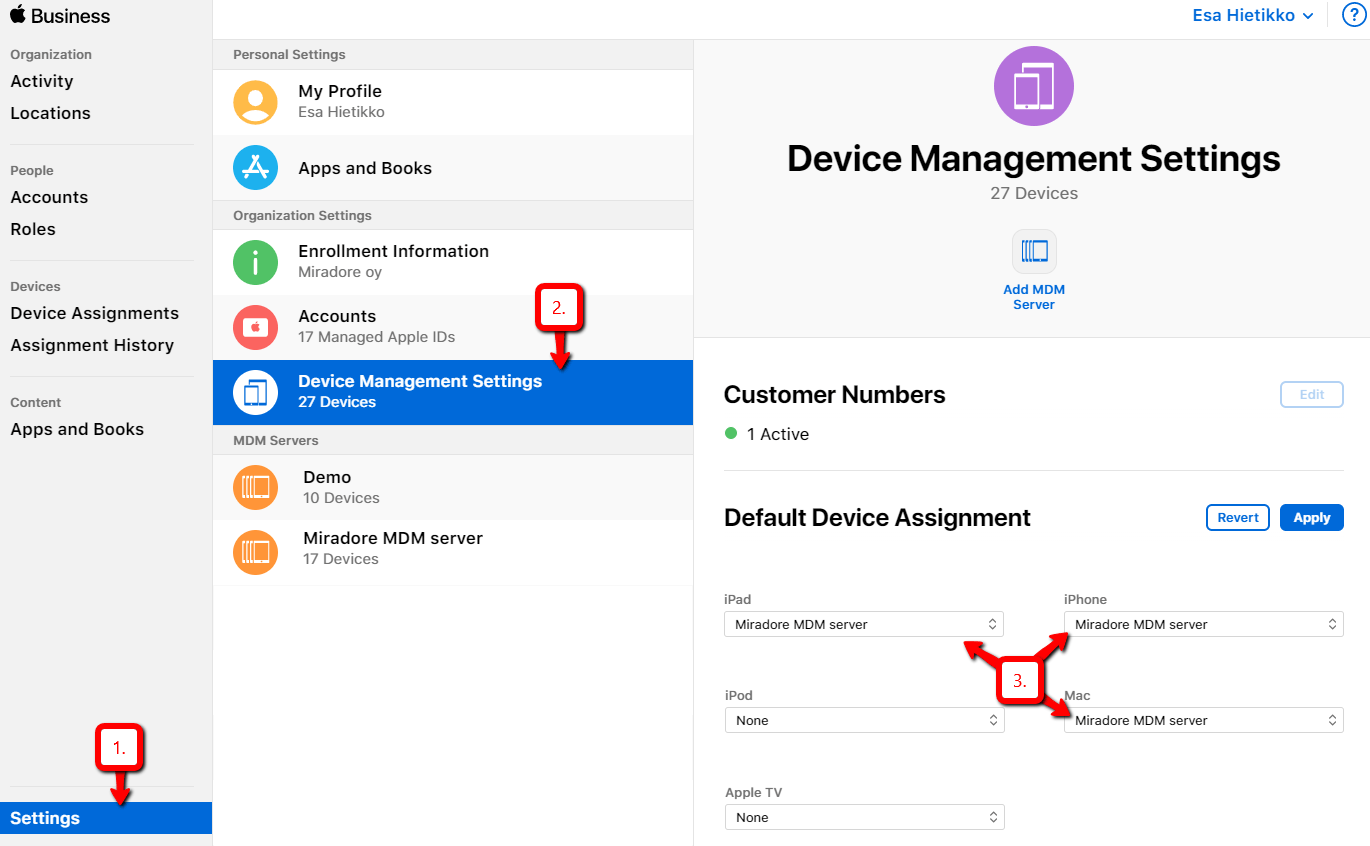
On the Apple Business Manager or School Manager (for educational institutions) website, administrators can define default MDM server for different Apple device types. After that, all devices enrolled to Apple Business Manager will be then automatically enrolled in to the selected MDM server.
You can configure the default device assignment at Settings > Device Management Settings in the Apple Business Manager portal.
You can also move Apple devices from an MDM server to another in Apple Business Manager portal.
Requirements
- You will need to have Device Manager access to the Apple Business Manager or School Manager
- All DEP enrolled devices must be wiped while they're being moved from an MDM solution to another
Steps for moving DEP enrolled Apple devices from another MDM server to Miradore
- First of all, set up the Apple Business Manager's Device Enrollment Program (Apple DEP) for Miradore as described in the How to set up DEP in Miradore section of the About Apple Device Enrollment Program article.
- Assign your Miradore site as the default MDM server in the Apple Business Manager website according to the instructions provided in the beginning of this article. This will ensure that all Apple devices purchased after this will be enrolled in your Miradore site.
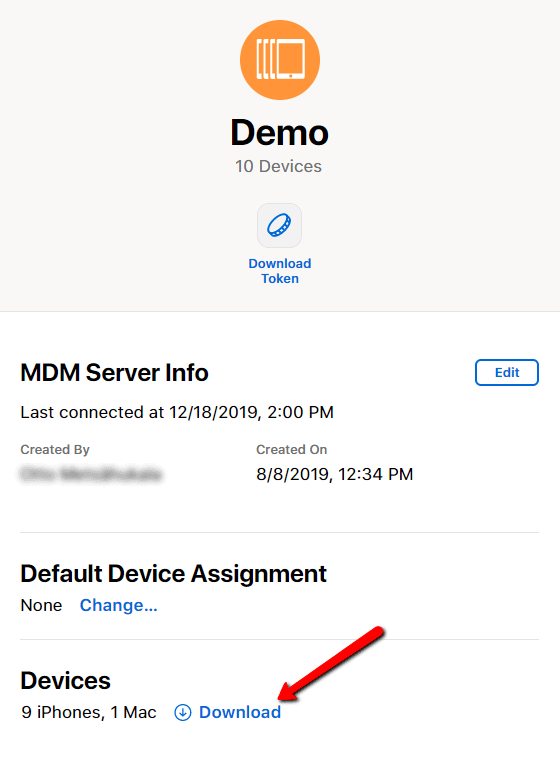
- Go to Settings in the Apple Business Manager website, and open up your earlier MDM server. In the popup showing the server details, and use the Download option to download a list of your devices that were enrolled in the other MDM solution.

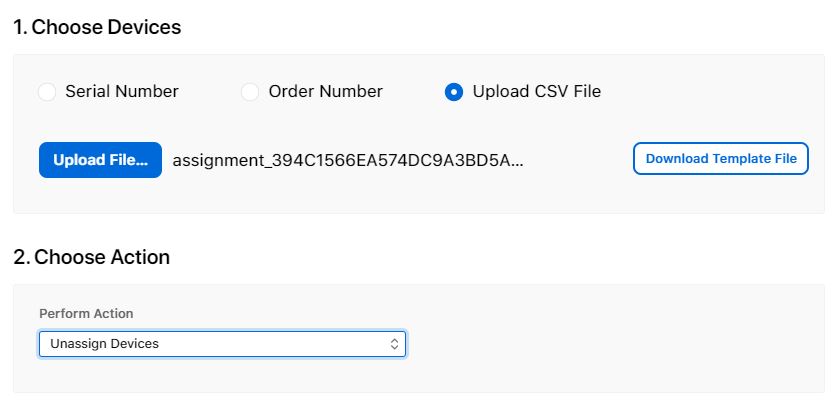
- Next you should unassign your devices from the earlier MDM server. You can do this in two ways. You can either remove the MDM Server. Or you can go to Device Assignments in the sidebar, upload the file with the serials numbers and choose Unassign Devices as the action to be performed. Click Done to finalize the action.

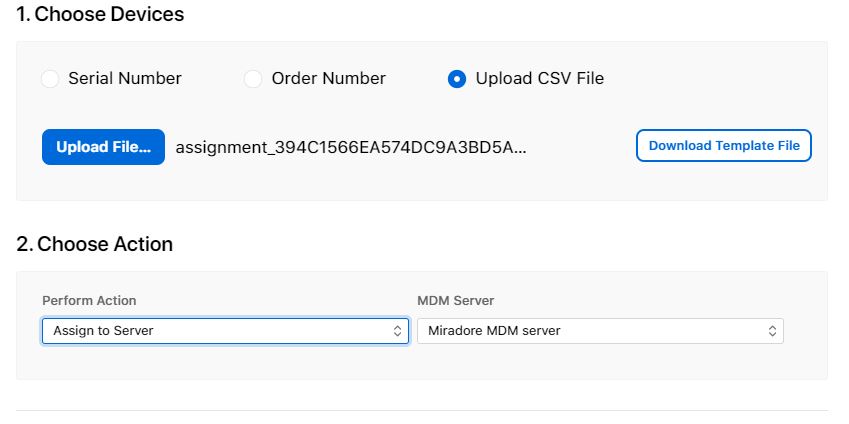
- Next, reassign the devices to your new Miradore site. You can do also this on the Device Assignments page. Upload the list of your devices again and then choose Assign to Server and select your Miradore site to the MDM Server field. Click Done to finalize the action.

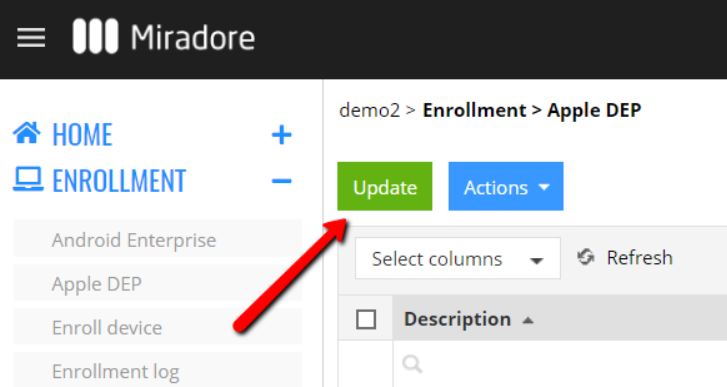
- Now you have done everything needed at the Apple Business Manager portal. Now log in to your Miradore site and use the Update button on the Enrollment > Apple DEP page to update your devices from Apple Business Manager to your Miradore site. After that, you should see a list of your Apple devices in the view.

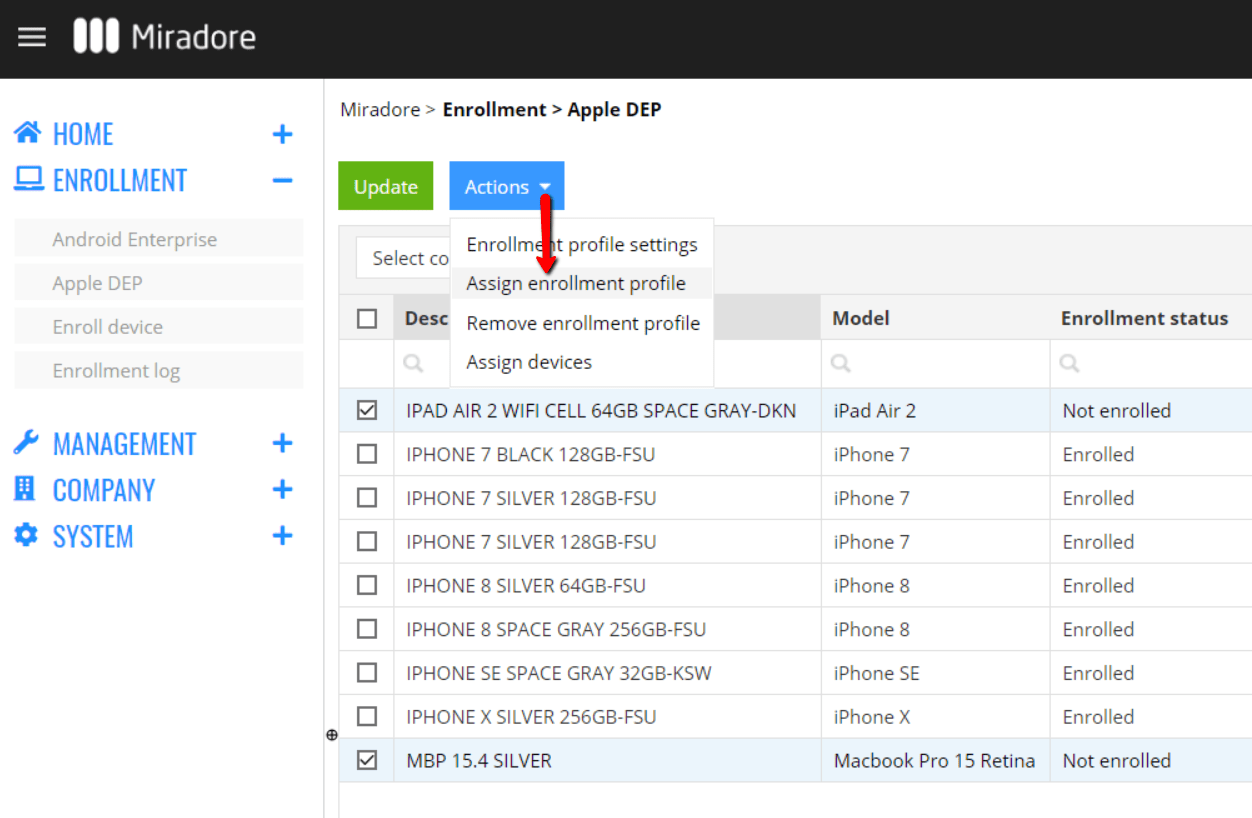
- Use the view checkboxes to choose the listed devices whose enrollment status is Not enrolled and run the Assign enrollment profile action for the devices. After this, the devices will be enrolled in to your Miradore site during their next initial setup.

- Lastly, perform wipe for the devices. You can use the other MDM solution to activate the wipe. After a successful wipe, the devices will be enrolled to your Miradore site automatically.
Have feedback on this article? Please share it with us!
Previous Article:
« Troubleshooting automated enrollment of Apple devices
Next Article:
Apple Volume Purchase Program »