
Enrollment is the process of onboarding your devices to Miradore MDM for remote management.
This article explains how you can use Apple's Automated Device Enrollment (previously Apple DEP) to automate the MDM enrollment of Apple devices that are associated with your Apple Business or School Manager account.
If you are looking for a way to enroll devices that are not associated with your organization's ABM/ASM account, please read the following articles:
Preparations
Before you try to enroll Apple devices using ADE, please check that you and your organization meet the following prerequisites:
- Make sure you understand what is Apple Business or School Manager and that your organization has an ABM/ASM account.
- Study the concept of Automated Device Enrollment (ADE)
- Check that you have Connected your Miradore site with ADE
- You must have an Administrator or Device Enrollment Manager role in ABM/ASM in order to manage device enrollment settings.
Overview of the Automated Device Enrollment process
First, after your organization purchases new Apple devices, the devices must be assigned to an MDM server for remote management in Apple Business/School Manager. You can assign devices to MDM servers either manually or automatically. Both methods are explained later in this article.
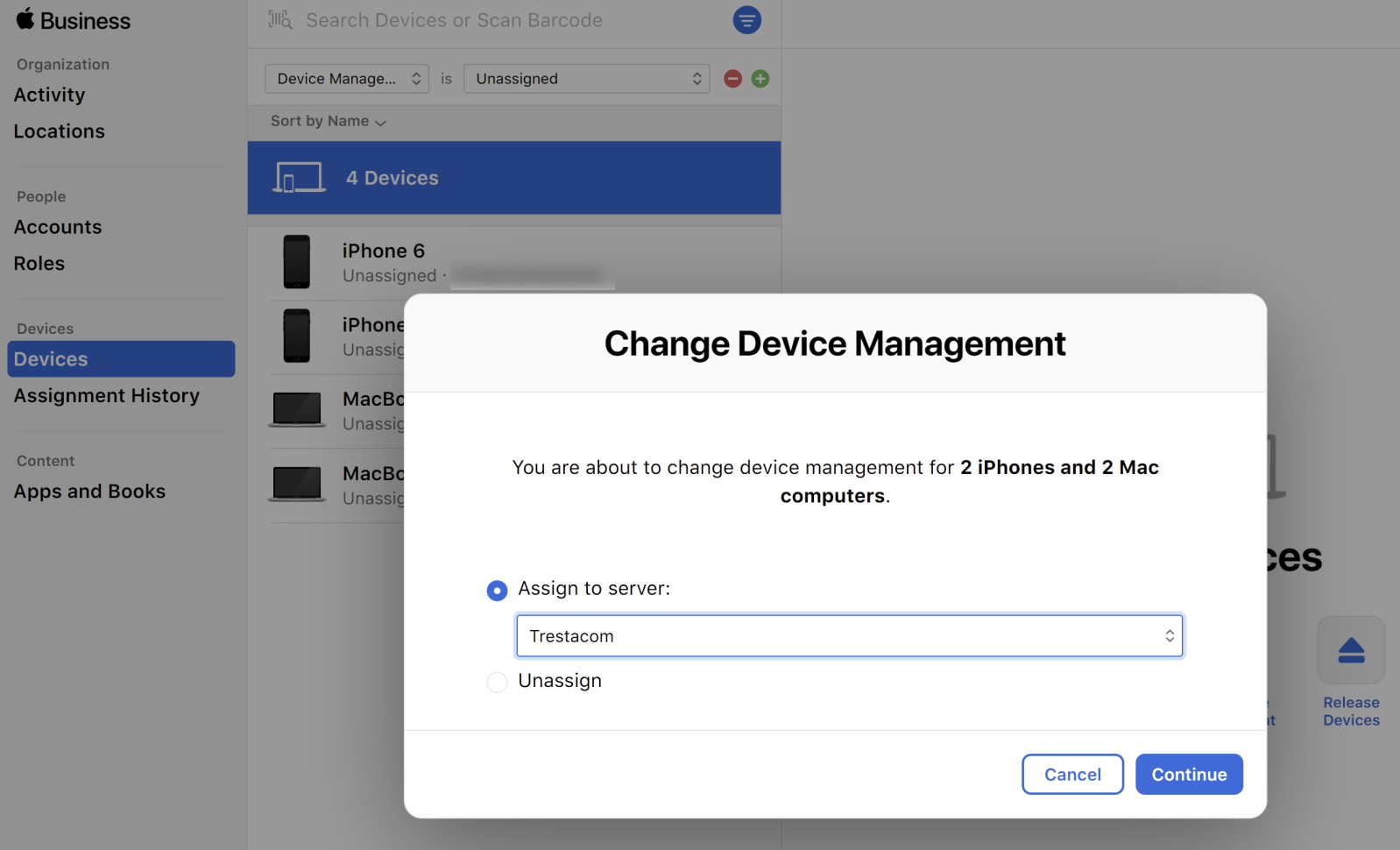
The devices will then appear on the Enrollment > Apple DEP page on the Miradore site where you assigned them. If you cannot see any devices on the page, please use the green Update device list button to synchronize the device data from Apple Business/School Manager to Miradore.
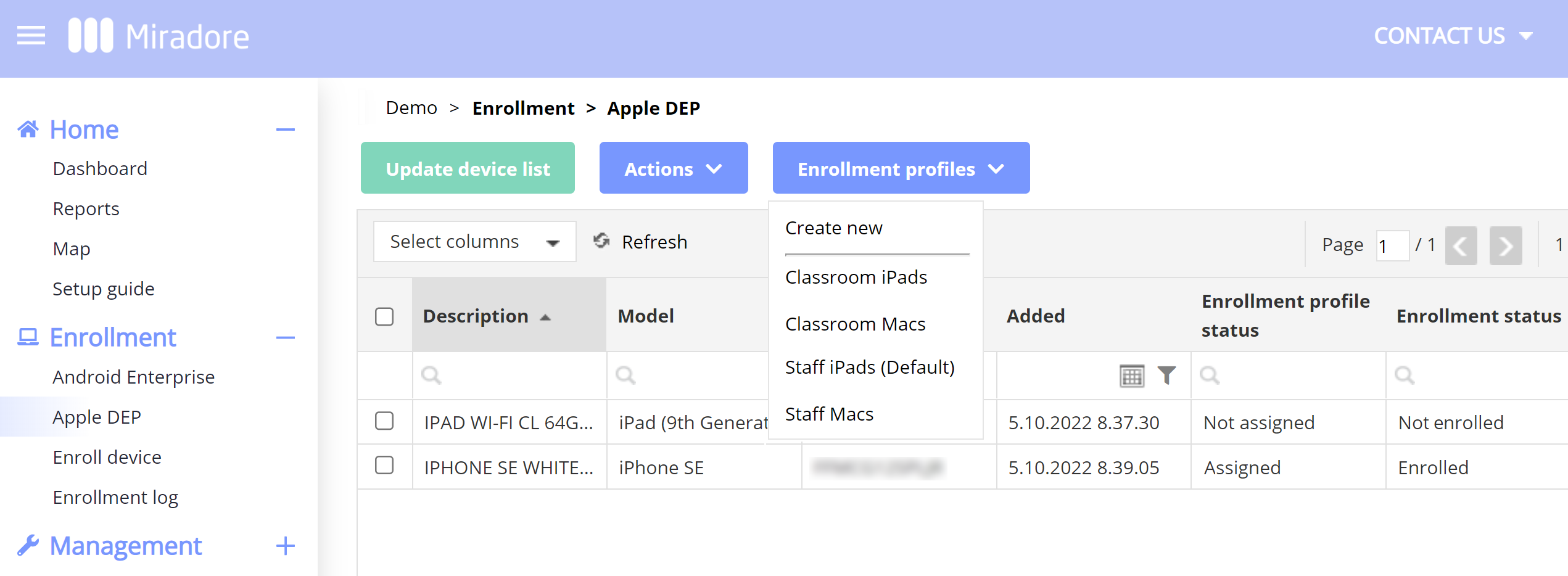
The Enrollment status column shows you whether the device has yet been enrolled in Miradore MDM.
In order to enroll the devices in Miradore, you must assign an enrollment profile to the devices. The enrollment profile contains the settings that will be applied to the devices during the enrollment.
The enrollment profile also defines whether the device user is allowed the detach the device from the remote management and whether the device is managed in the Supervised mode or not.
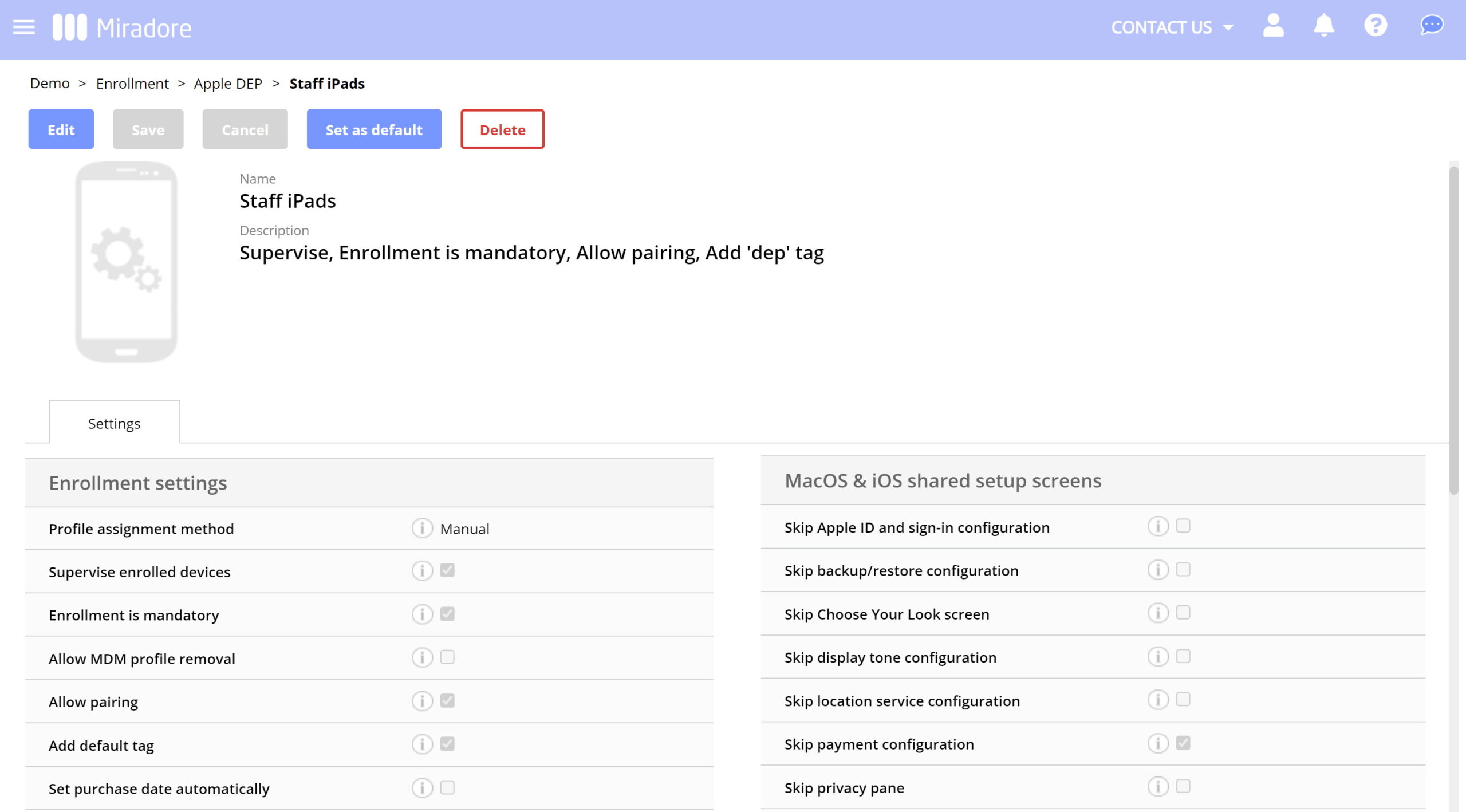
On the Enrollment > Apple DEP page, you can create new enrollment profiles, modify the existing ones, and assign the enrollment profiles to the devices.
Everything after the profile assignment is automatic. The device will be automatically enrolled to Miradore when it is first time powered on or factory reset (if it was in use already). In the enrollment profile settings, you can make the MDM enrollment mandatory, which means that the device user cannot bypass the MDM enrollment in the device's Setup Assistant.
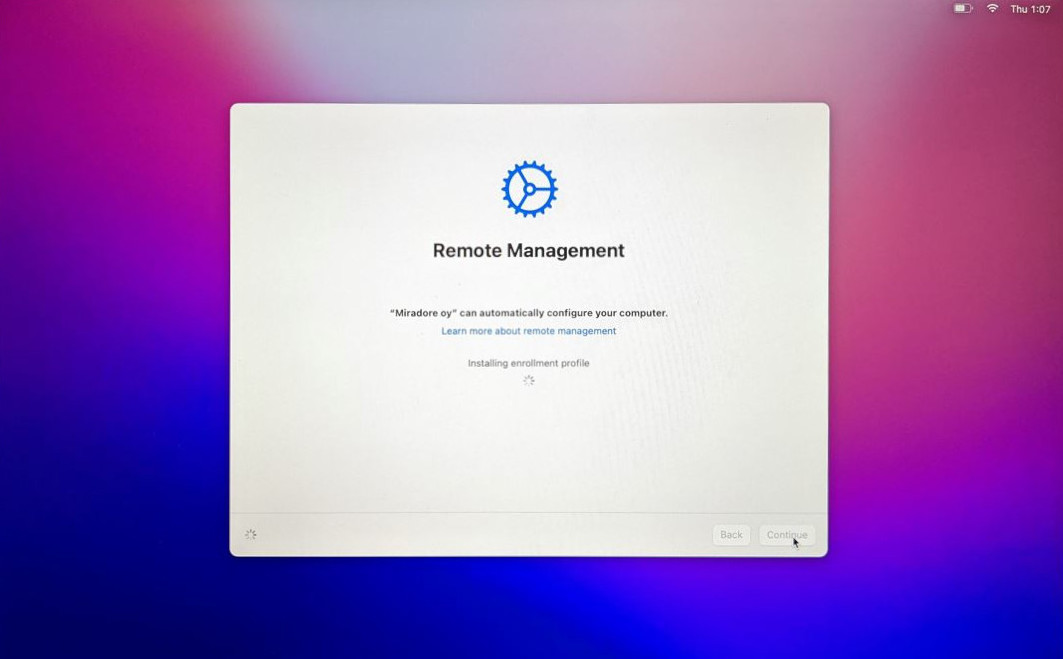
The device enrollment is complete when the device's Enrollment status is Enrolled on the Apple DEP page in Miradore.
Please note that if you change the configuration of an existing Enrollment profile, the changes will not take effect on devices until they are factory reset and activated again.
How to assign devices to an MDM server (Miradore) manually?
Your organization's Apple Business/School Manager account contains records of all Apple devices managed owned or managed by the organization. If you cannot find some devices from your ABM/ASM account, check How can I add devices to Apple Business / School Manager.
By default, devices are not assigned to any MDM server in Apple Business or School Manager. If you want to start managing your devices remotely with MDM software, you must assign the devices to an MDM server.
You can assign devices to MDM servers based on the order number or source. For example, you can assign all devices purchased from a certain reseller to one MDM server. To assign, unassign, or reassign devices, go to the Devices page in Apple Business or School Manager. Use the search tools to filter devices, select the desired devices from the list, and then click Edit Device Management to choose the MDM server.
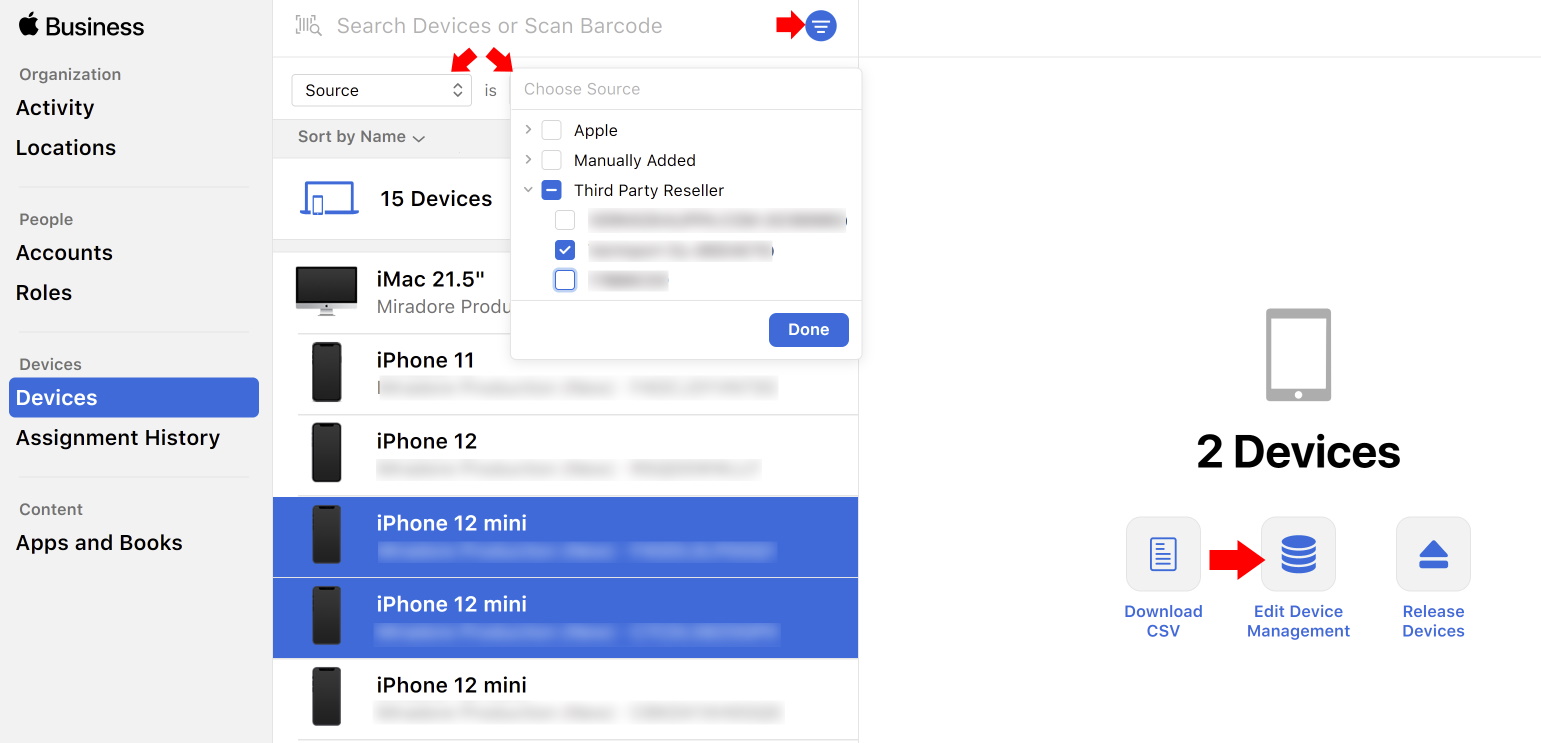
For more details, please refer to the Apple Business Manager User Guide.
Setting a default MDM server for device types
You can avoid the need to manually assign devices by setting a default MDM server for specific device types. To do this, go to Settings > Device Management Settings in Apple Business/School Manager, and select the preferred MDM server for each device type. After this, new devices will be automatically assigned to that MDM server for remote management when they appear in ABM/ASM.
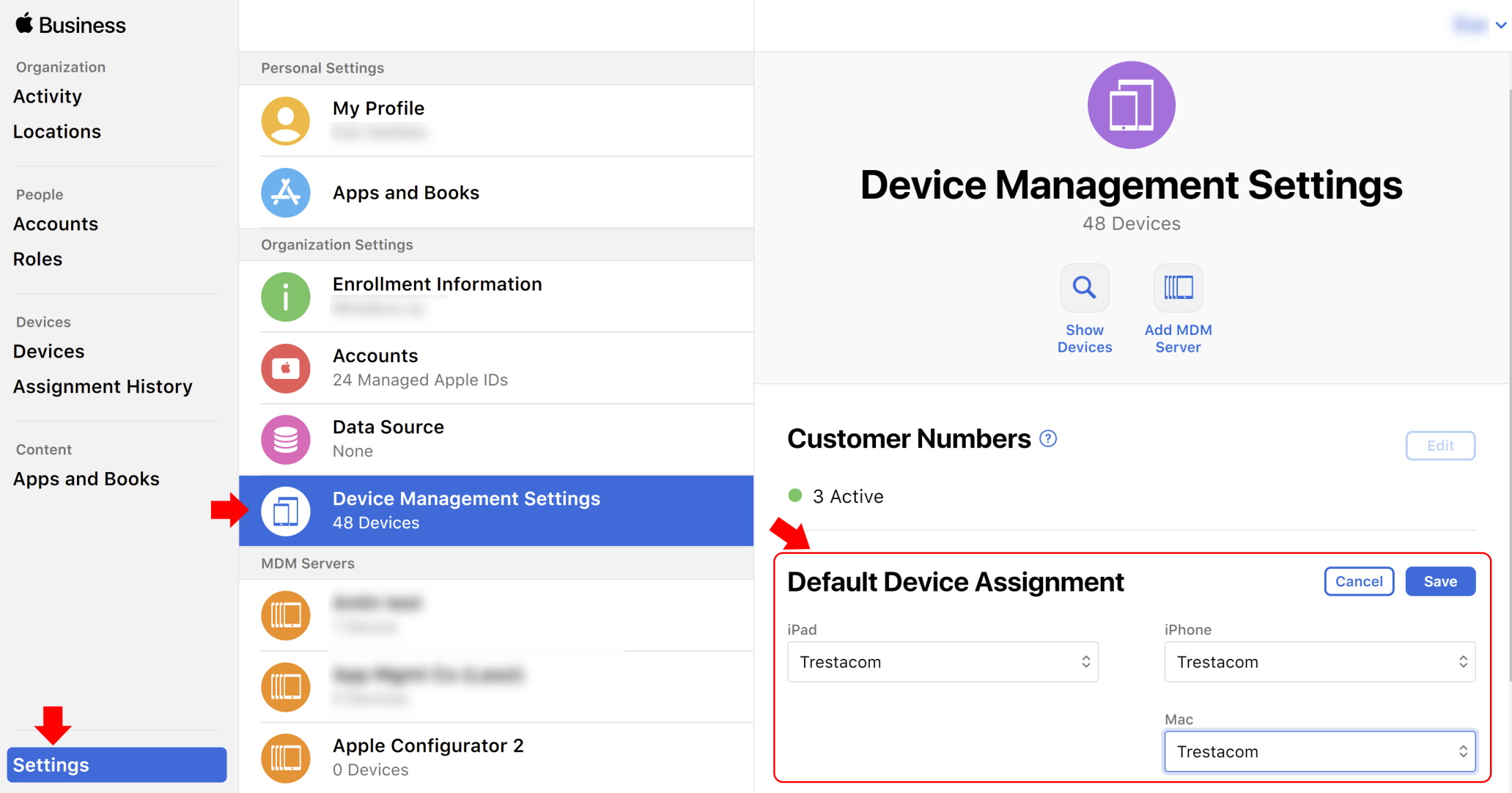
For more details, please refer to the Apple Business Manager User Guide.
Have feedback on this article? Please share it with us!
Previous Article:
« Integrating Apple’s Automated Device Enrollment with Miradore
Next Article:
Enrollment profiles for Apple’s Automated Device Enrollment »